
Progressive Web Service App
What is a Progressive Web App (PWA)
- The Service app is also a Progressive Web App (PWA). This means it combines the best features of both websites and traditional mobile apps. PWAs provide a smooth, app-like experience with the convenience of accessing them from a web browser.
- NOTE: Just like a normal app, the PWA will have updates. Unlike a normal app, the PWA does not allow for automatic updates.
- As updates to Tinnacity Service are released, within the PWA simply tap command + R which will refresh the screen and then update the PWA to the latest version of the app.
- NOTE: Just like a normal app, the PWA will have updates. Unlike a normal app, the PWA does not allow for automatic updates.
How Do I Setup & Use the Service App as a Progressive Web App?
On Windows Devices:
- Access the Service app using your preferred web browser by visiting https://service.tinnacity.com/login
- Simply open the link, log in, and enjoy a seamless experience whether you’re on mobile or desktop!
Setup
Ensure your browser is configured to allow service.tinnacity.com access to your hardware and notifications. Without these, key features will not work.
Google Chrome
- Open Google Chrome and enter service.tinnacity.com
-
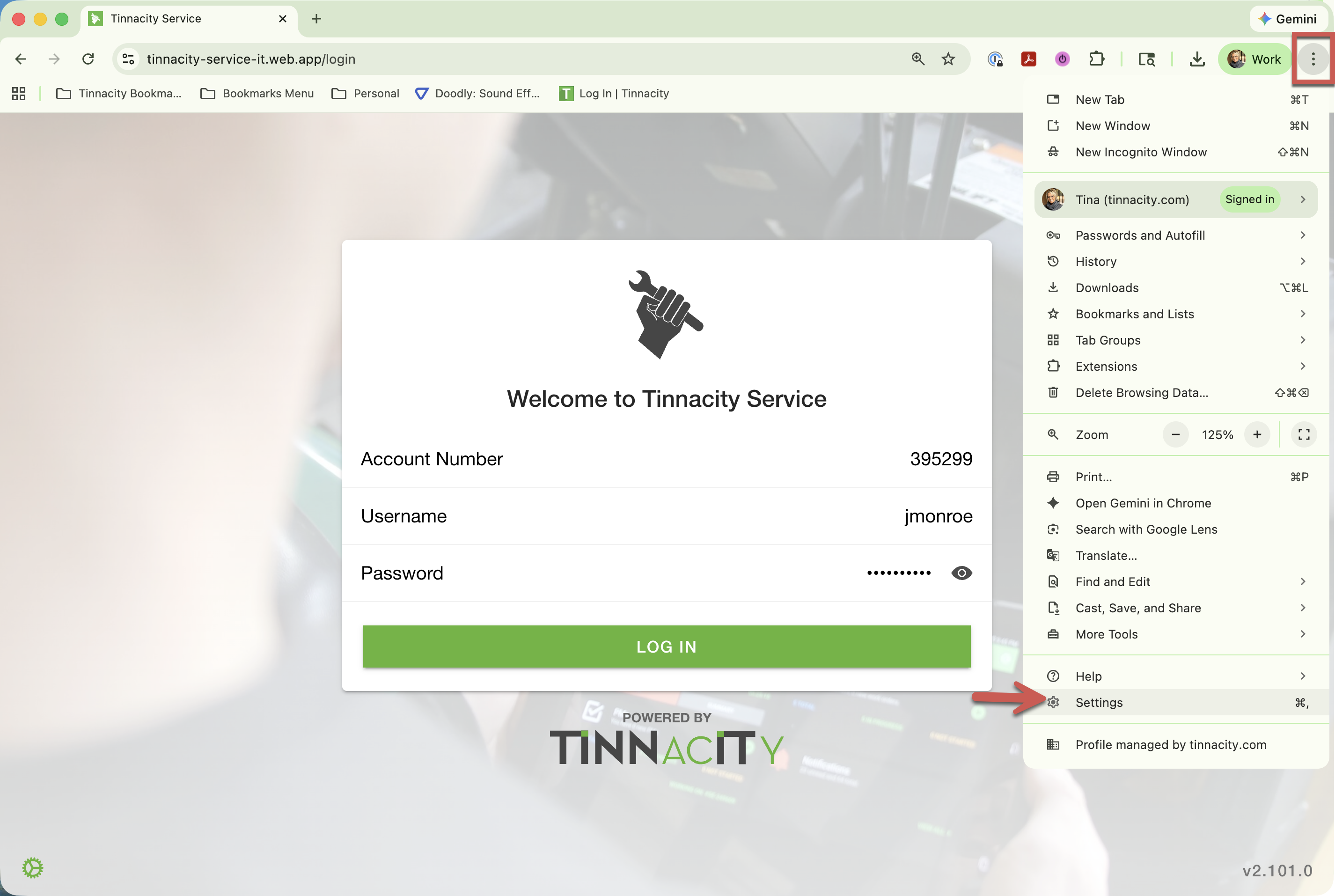
In this Google Chrome tab click the three dots, then choose Settings.
-
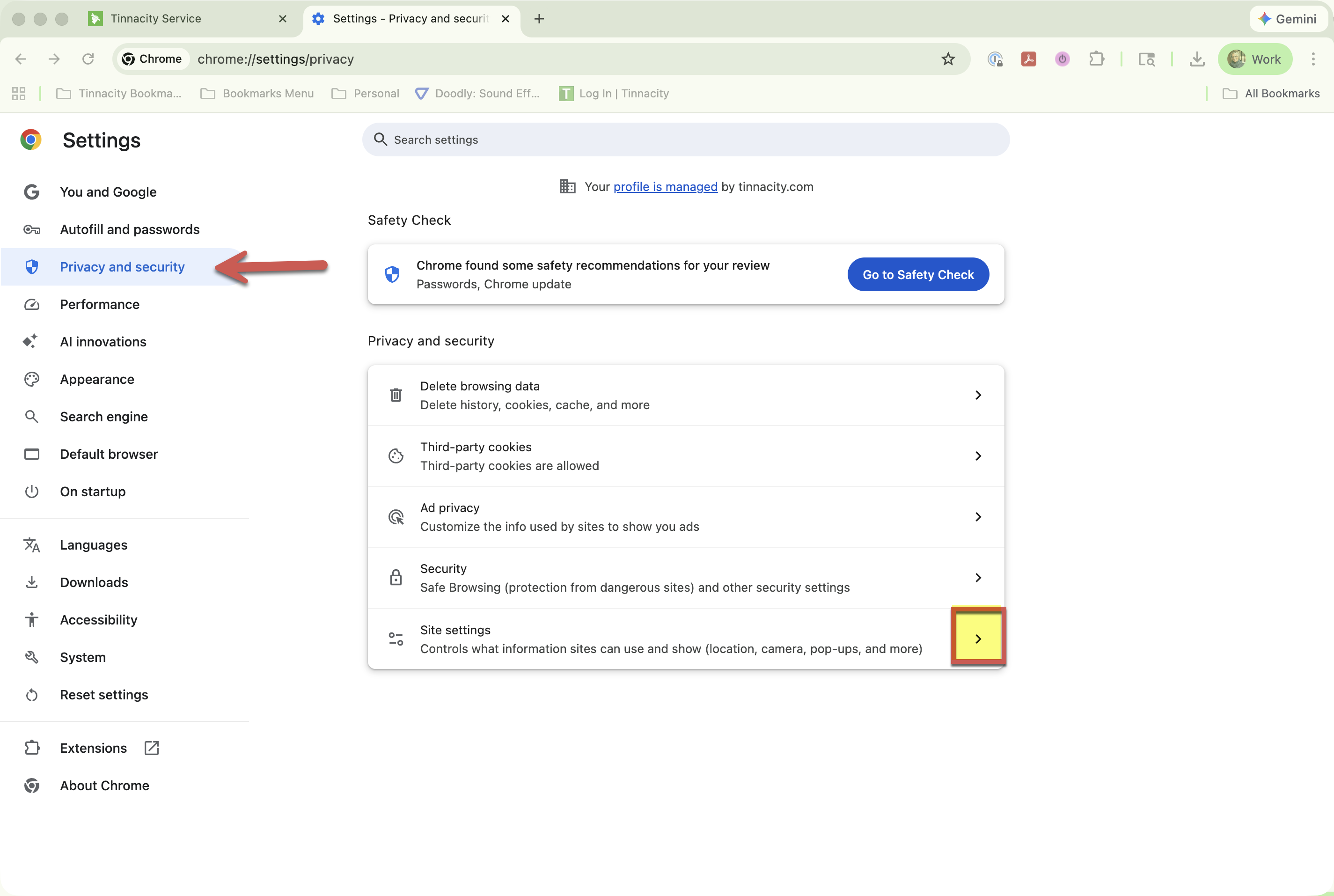
In the Left panel click Privacy and security, then click Site Settings.
-
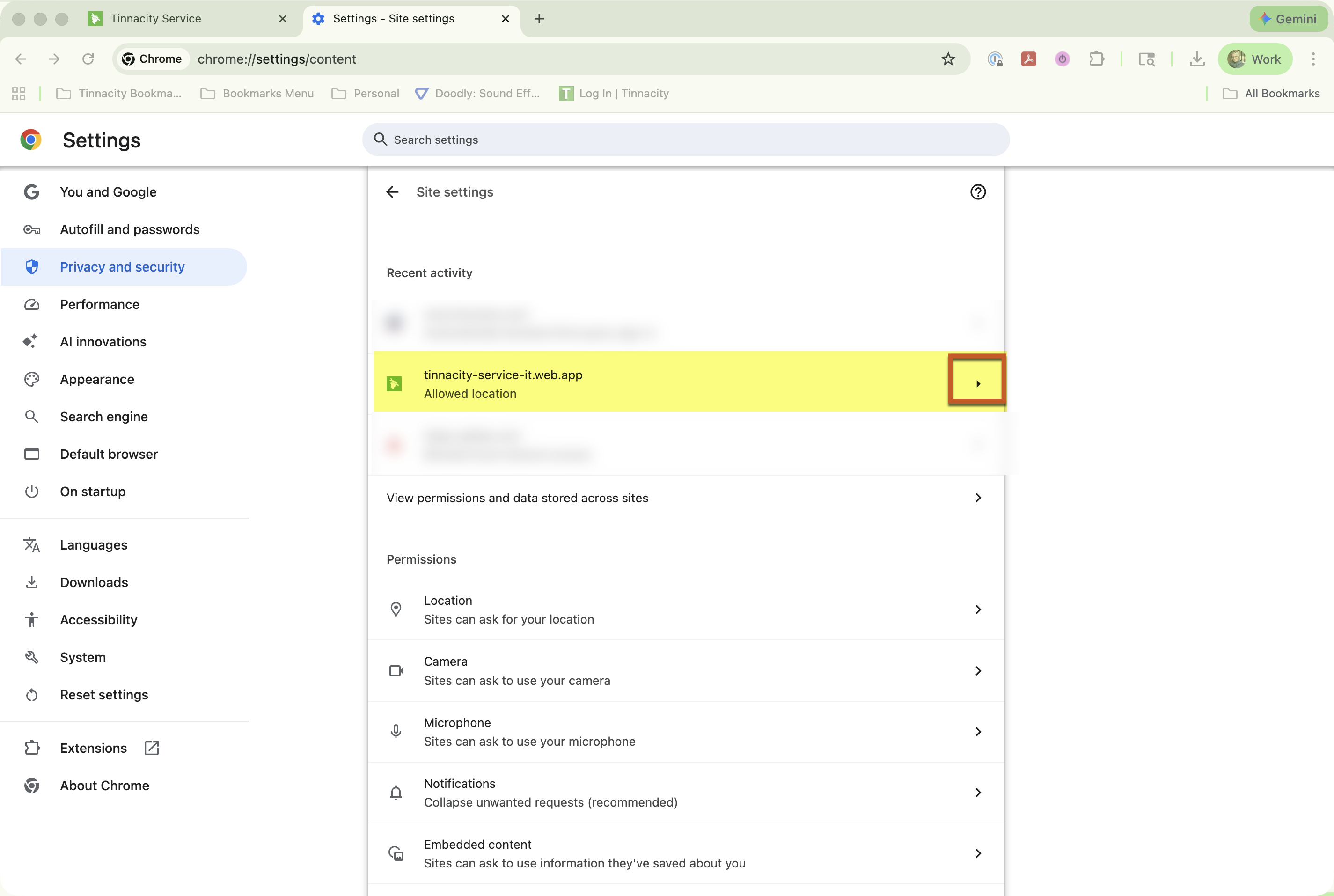
Locate tinnacity-service-it.web.app, then click the arrow.
-
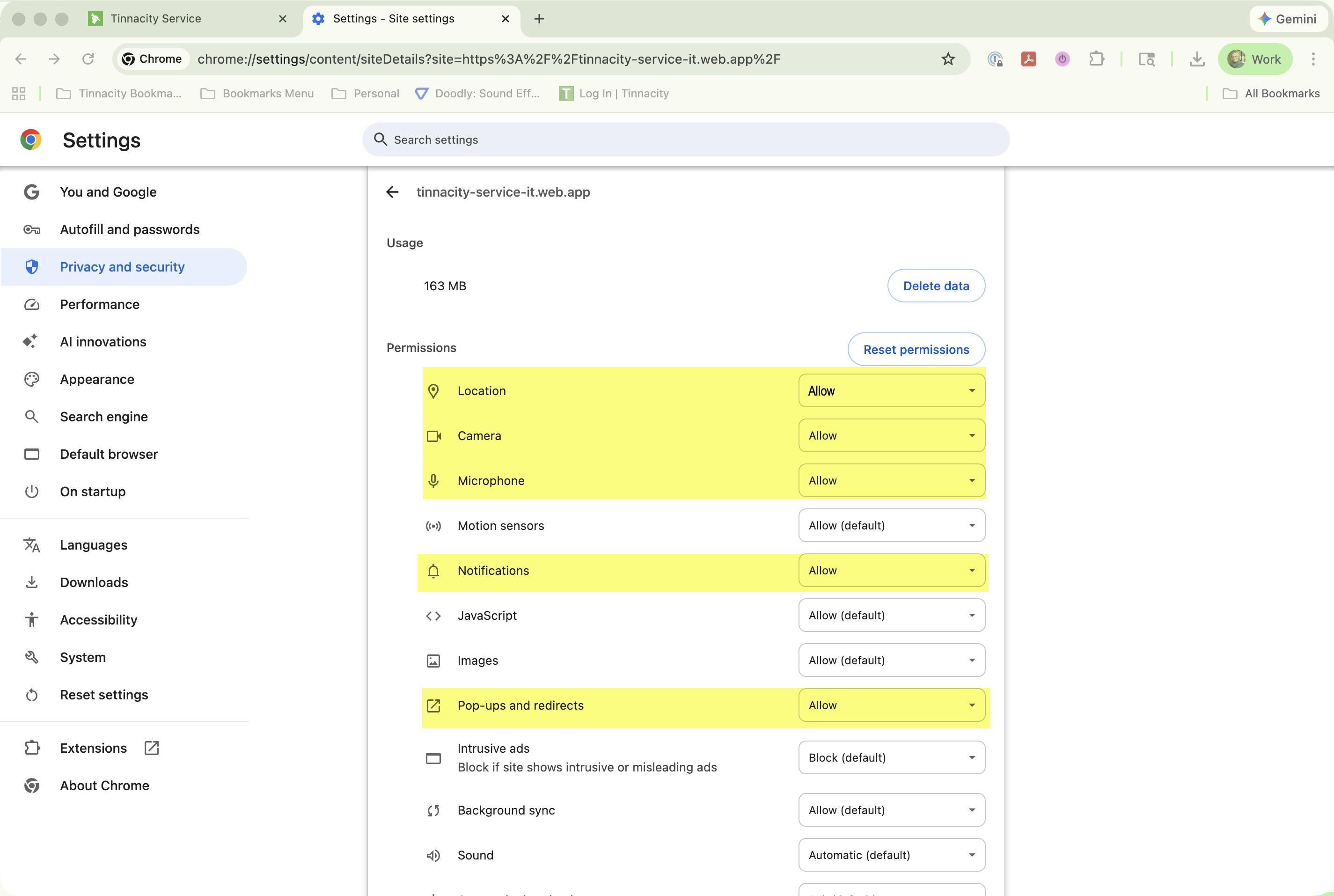
Set Allow for: Location, Camera, Microphone, Notifications, and Pop-ups and redirects.
- You can now close the Settings tab.
Microsoft Edge
Via URL Bar:
- Open the PWA by entering https://service.tinnacity.com/login in the URL.
- Click the lock icon (🔒) or the settings icon in the address bar.
- Select Permissions for this site to instantly change allowed or blocked features. Set Allow for: Location, Camera, Microphone, Notifications, and Pop-ups and redirects.