Time Card Shifts
Time card shifts allow for users to be assigned to a specific working shift. At this time, this feature is to allow for viewing/grouping of time cards for technicians working the over night shift (i.e. across midnight).
To create a new shift, navigate to Company Settings > Shifts > Click on the + sign in the top right. In the form, enter in the name, shift start time and shift end time & click Save.
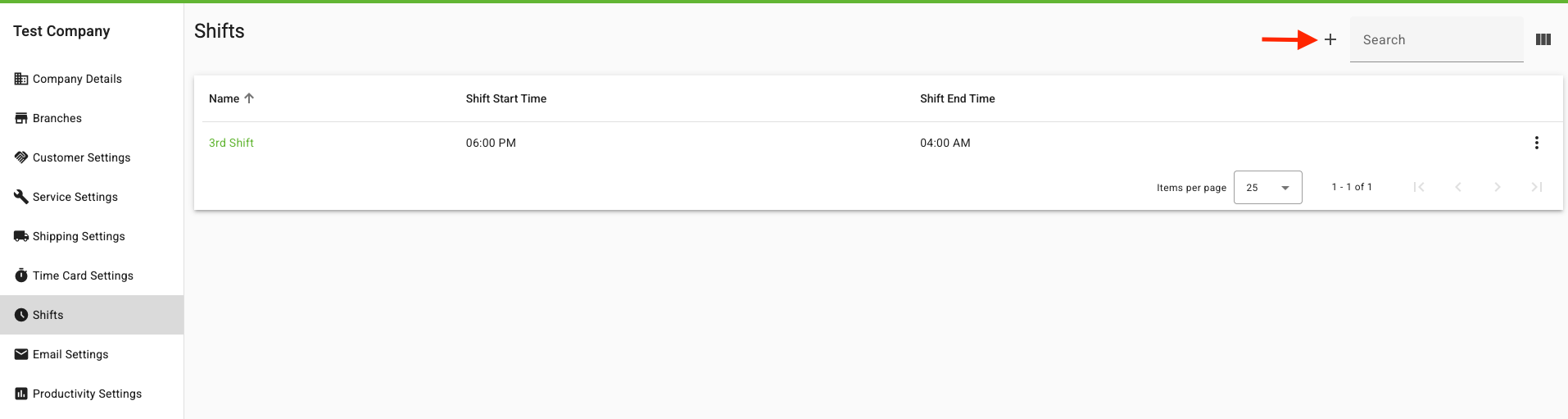
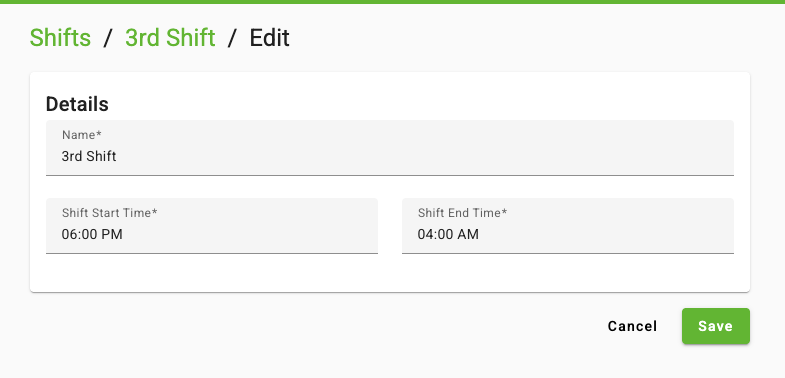
The shift start time is used to calculate the shift offset, which is done by getting the difference between a standard 8 AM shift start and the start of the new shift. In the example above, the shift offset is 10 hours (8 AM - 6 PM). This offset will then be used to determine the new day break (i.e. today the standard day break is midnight). In the example above, a user who is working 3rd shift would have a day that goes from 10:00 AM - 9:59:59 AM (following day). Any time card entries within that time range would belong to the day the shift started.
To assign a shift to a technician, navigate to HQ > Admin > Users > technician details screen. Select Edit in the top right corner. Within the details card, in the Shift field, choose from available options in the Shift drop down.
- To assign a shift to a technician, navigate to HQ > Admin > Users > technician details screen. Select Edit in the top right corner. Within the details card, in the Shift field, choose from available options in the Shift drop down.
The shift date is now used when viewing time cards, building user utilization/reports, and apply user utilization flags.
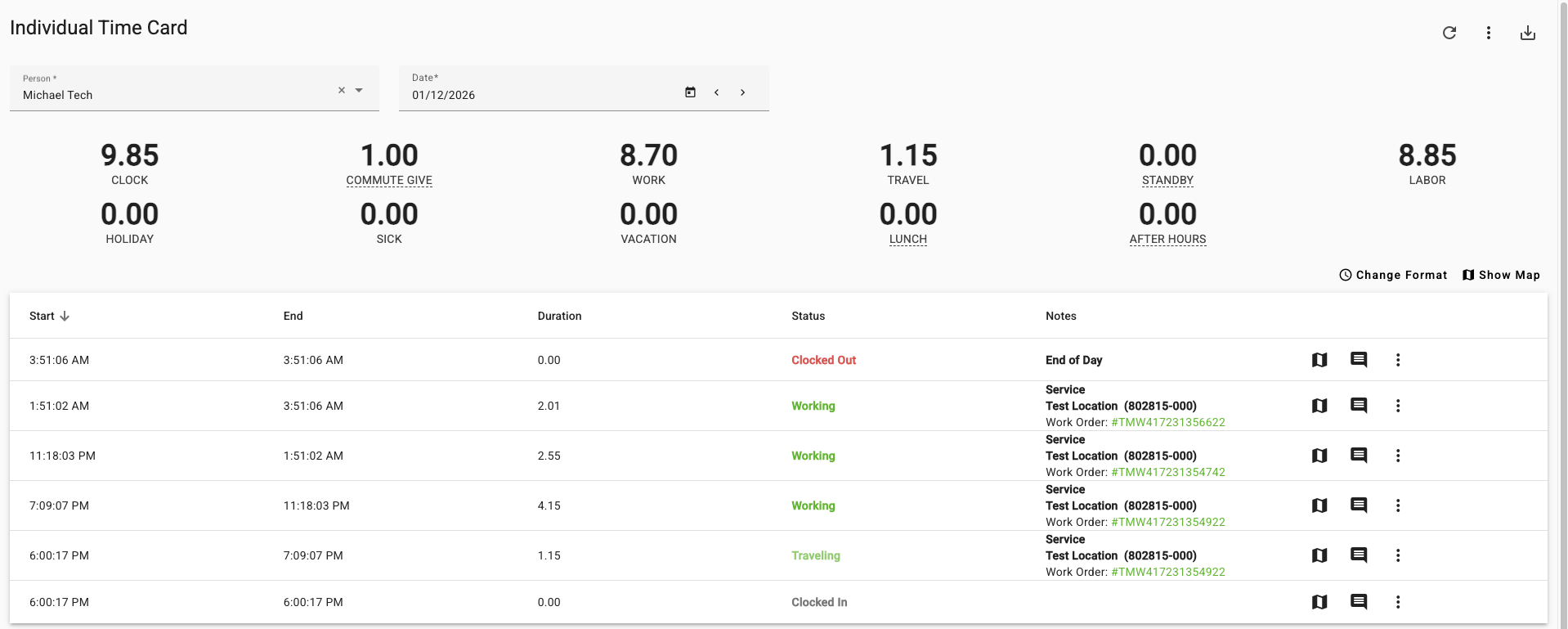
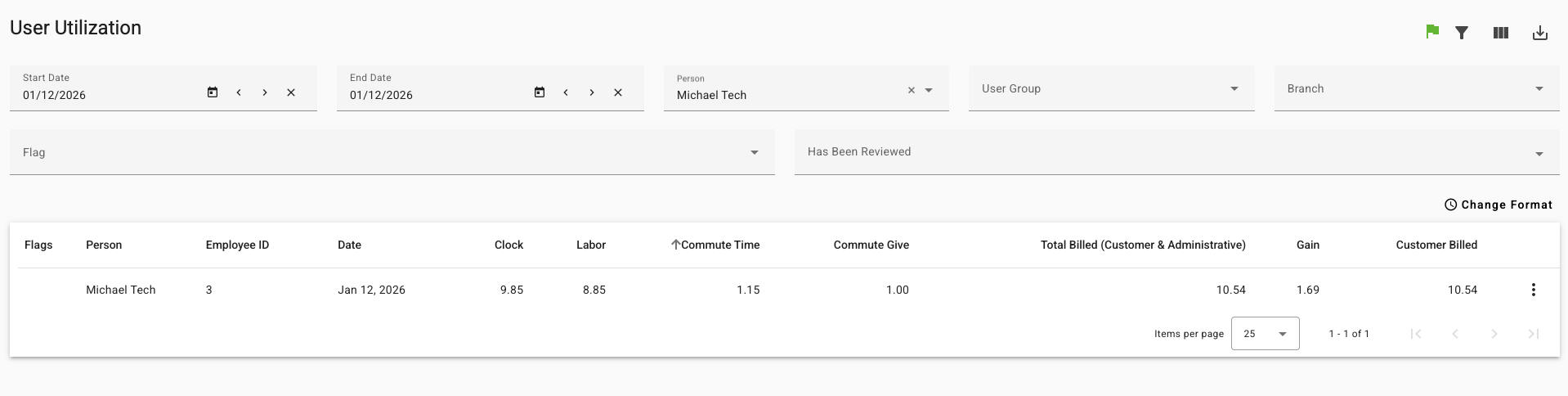
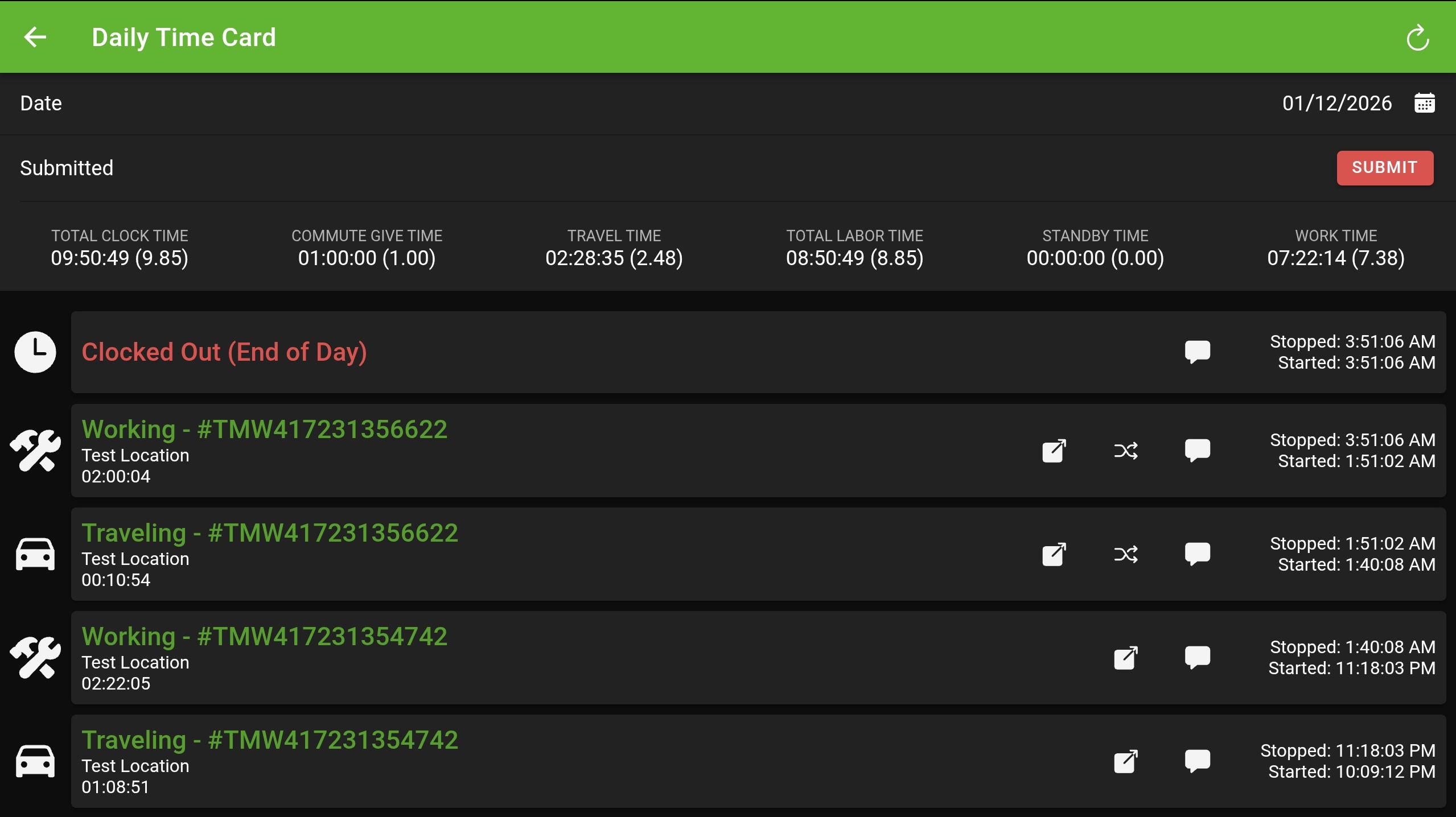
In the Service app, the technician's time card will be grouped by shift date as well. In the screenshot below, the time card entries from the morning of the 13th are displayed on the 12th because that is when the shift began. When a technician submits their time card, it will submit all time card entires for that shift date.
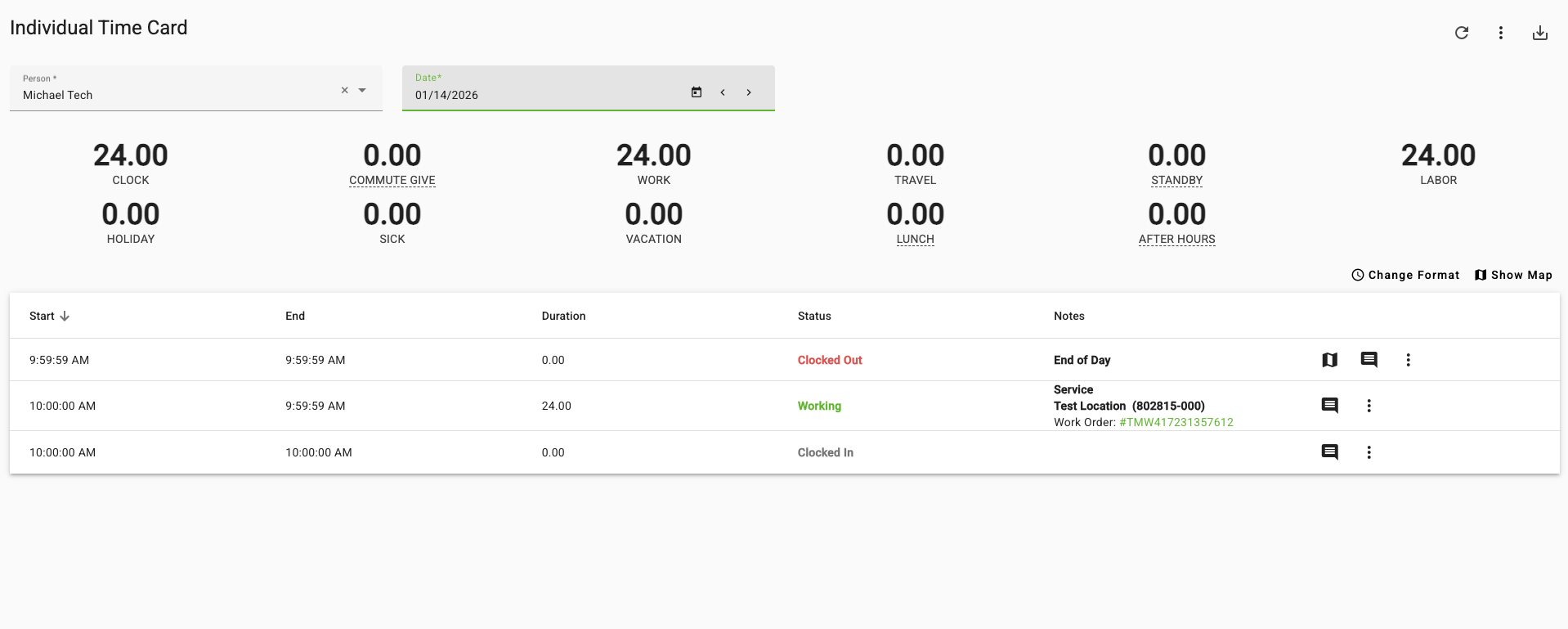
If a normal technician works across multiple days, a clock out / clock in is created at midnight. If a technician is working on a different shift, the clock out / clock in will now be created at their new day break i.e. 10:00 AM (from the 10 hour offset) in the example below.