Work Order Attachments-Service App
To maintain a clean service history, distinguish between transactional and permanent attachments. Work Order attachments should focus on the current repair—specifically capturing the state of the equipment and components before and after service.
For long-term equipment data, such as data plates, use the [View Details] on the Equipment Card. This ensures the information persists across all future Work Orders for that specific asset.
If the Work Order Type requires specific documentation, the Attachments card will list the mandatory count and provide the necessary labels for compliance.

Attachment File Types
Pictures: .jpeg and .png (File Size: 5MB)
Files: .pdf (File Size: 5MB)
Video: 15 second video clip
How to add an attachment
-
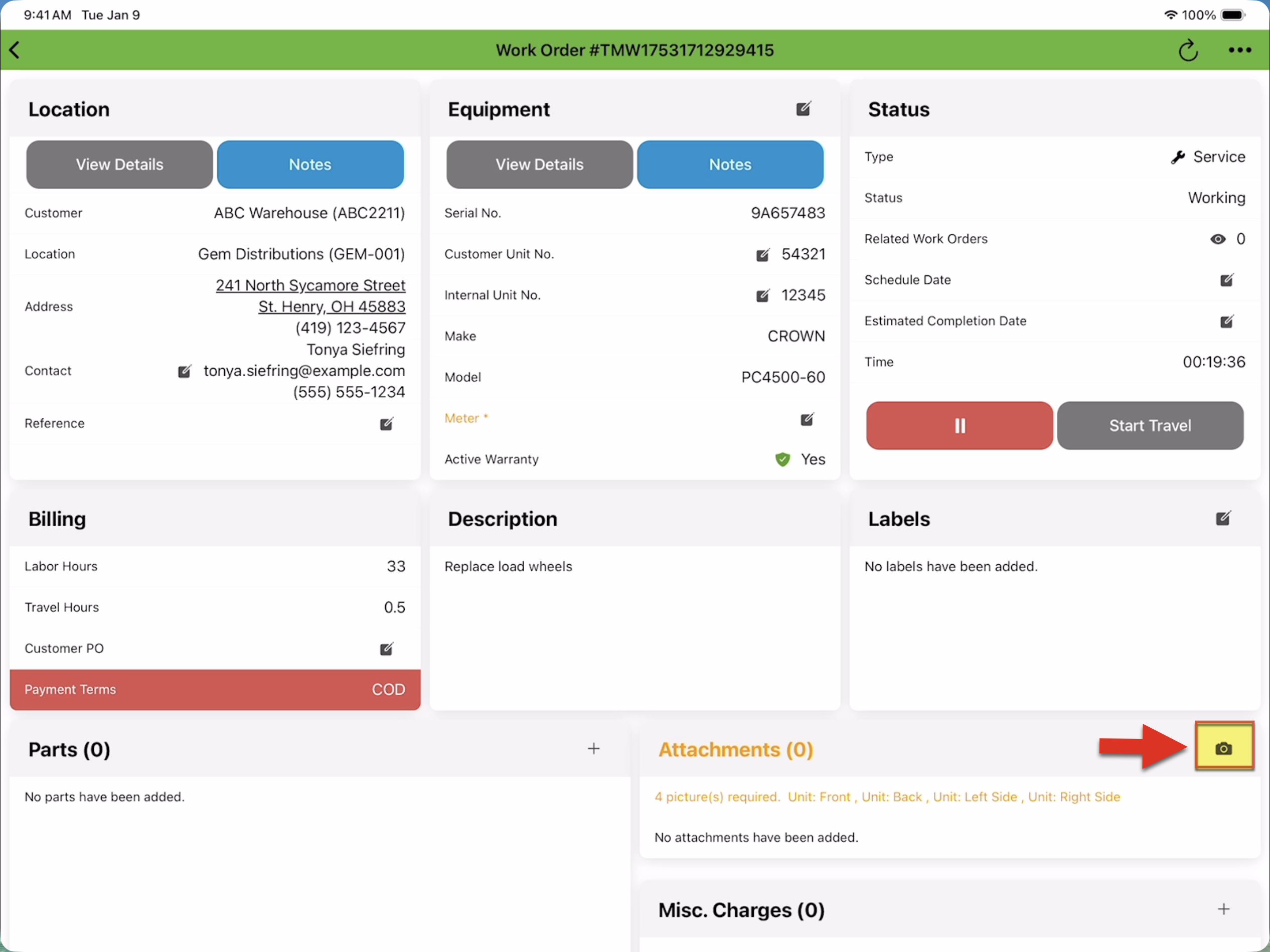
While in the work order details, press the camera icon in the Attachments card.
-
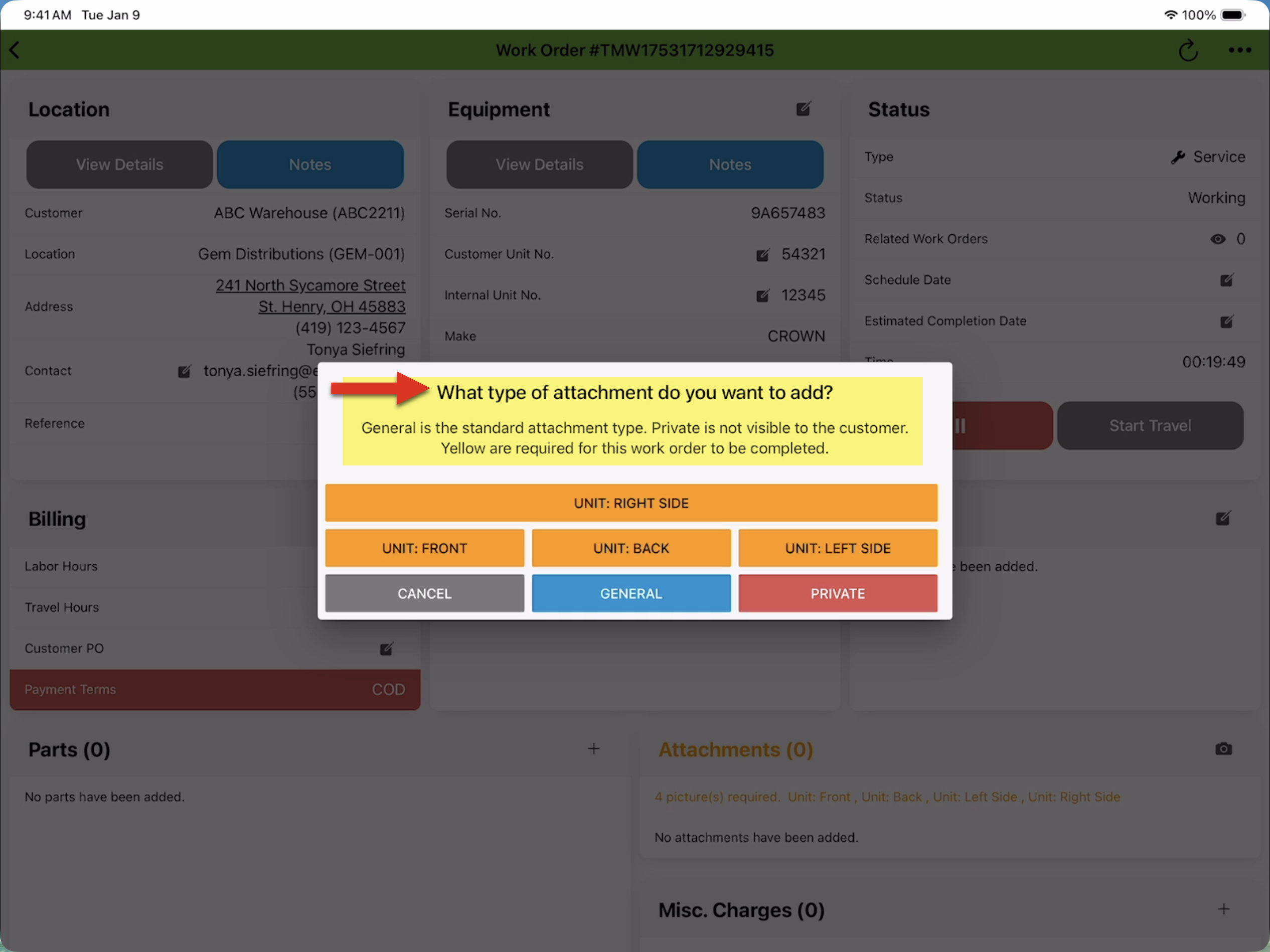
"What type of attachment do you want to add?" is now on display.
-
If the Work Order Type has required picture count and labels, each required picture will have a [button] (e.g., UNIT: RIGHT SIDE, UNIT: FRONT, etc.). Tap which picture you want to capture. NOTE: [GENERAL] allows you to take additional photos and/or video that are visible to the customer. [PRIVATE] allows you to take a picture and/or video that is only visible to technicians and the back-office (not to the customer).
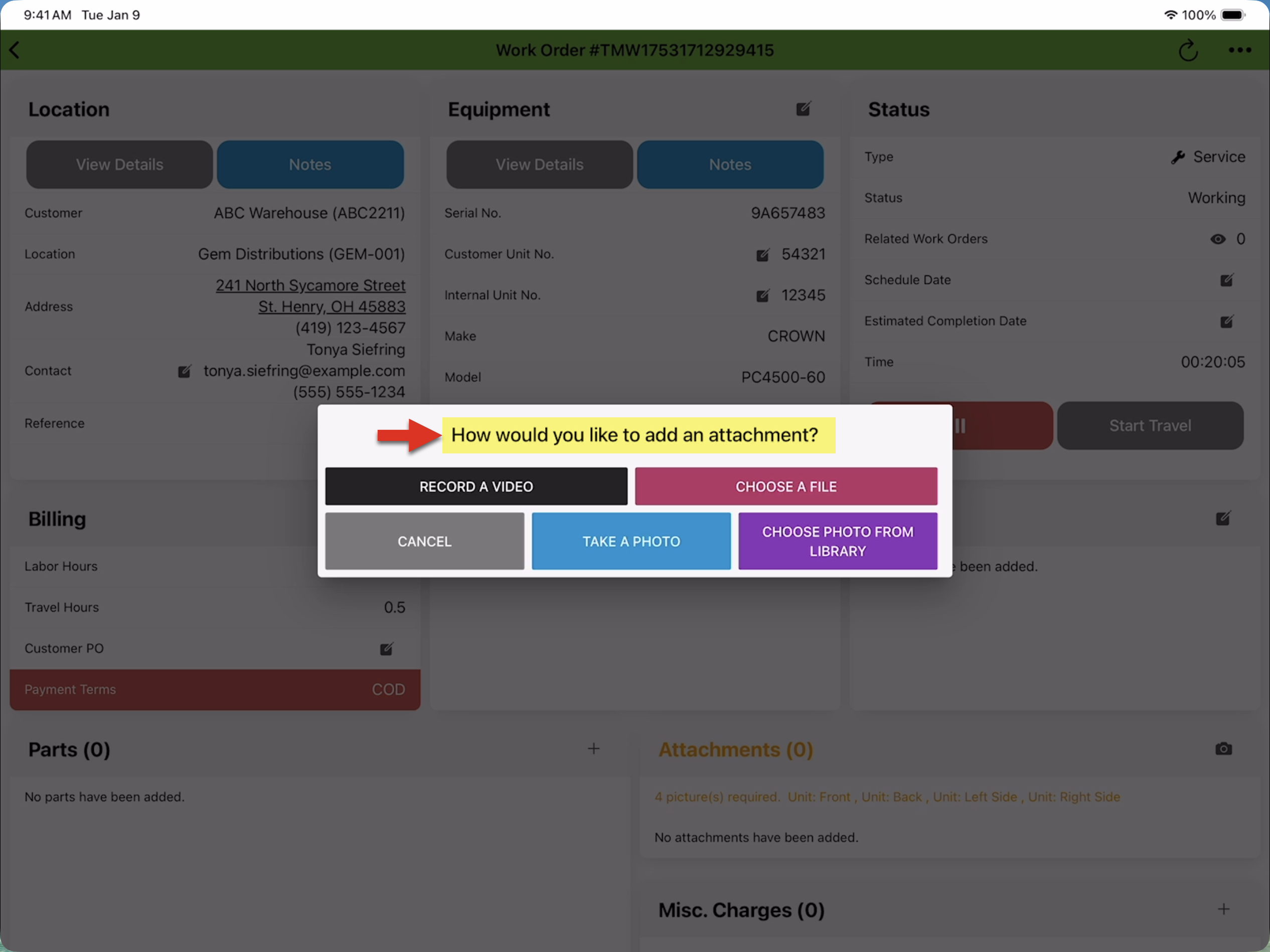
- Once you've selected 'What type of attachment do you want to add?', the How would you like to add an attachment? is now on display. From here you can select:
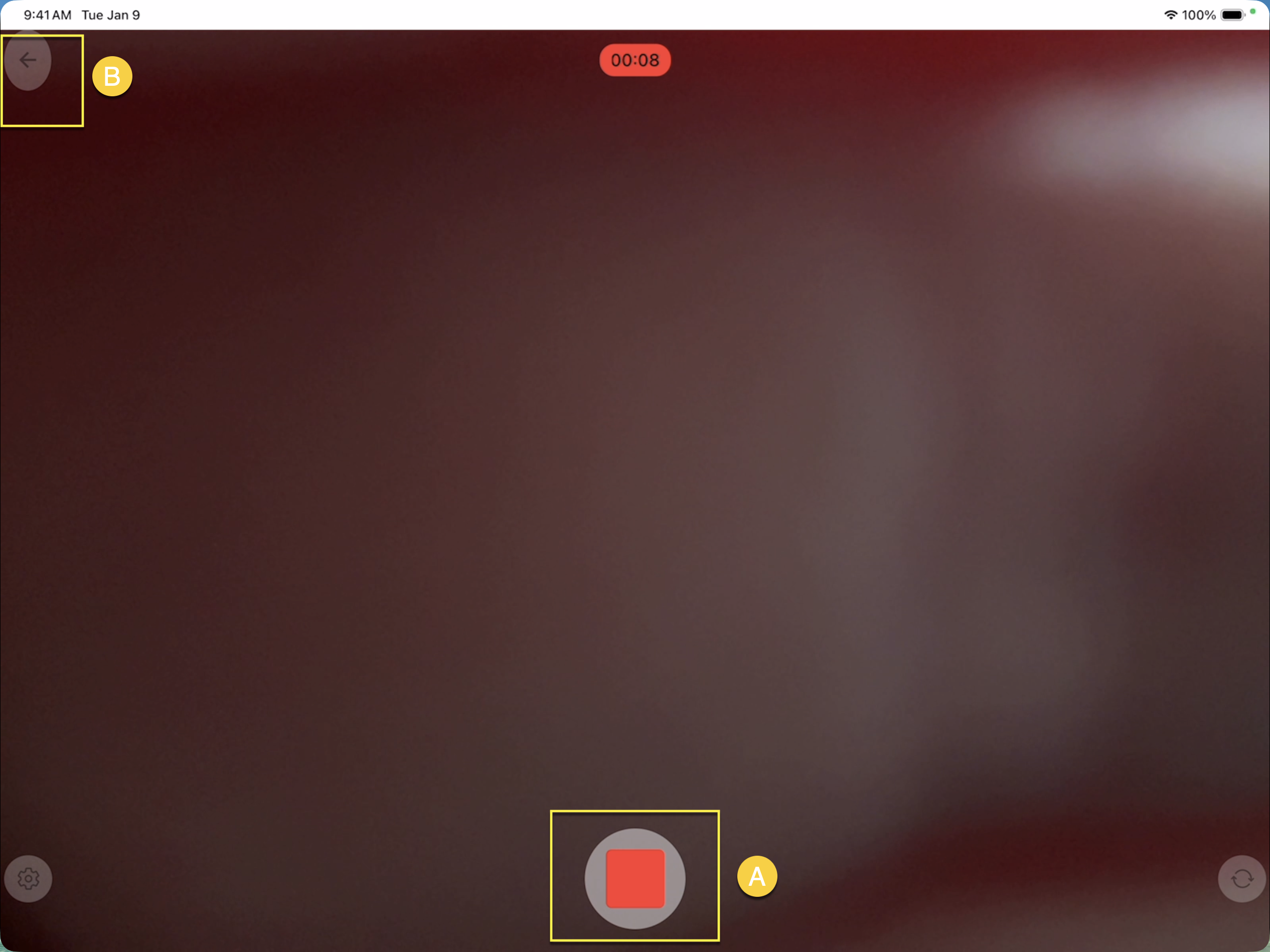
- Record a Video: This option allows you to record up to 15 seconds of video. See below how to use the record video feature.
- Choose a File: This option allows you to upload a file.
- Take a Photo: This option allows you to take a still picture.
- Choose Photo from Library: In enabled, this option allows you to upload a photo(s) from your photo library. This option should only be used if a photo was taken outside of the Service app and marked up to indicate "see here" (e.g., arrow, circled section, etc).
-
Cancel: Press cancel to close this prompt.
To record a video
-
In the 'How would you like to add an attachment?' prompt, press [RECORD A VIDEO], this opens the camera.
-
Press [Record].
-
Up to 15 seconds of video can be recorded per recording. Press (A) stop recording to stop the recording, then press the (B) back arrow to attached the recording to the work order. NOTE: If 15 seconds is reached, the recording will automatically stop and attach to the work order.