
How to Navigate in HQ
A faster, more organized way to get around Tinnacity HQ
We've rebuilt navigation in Tinnacity HQ to help you find what you need faster.
Check out the video for further explanation:
What Changed
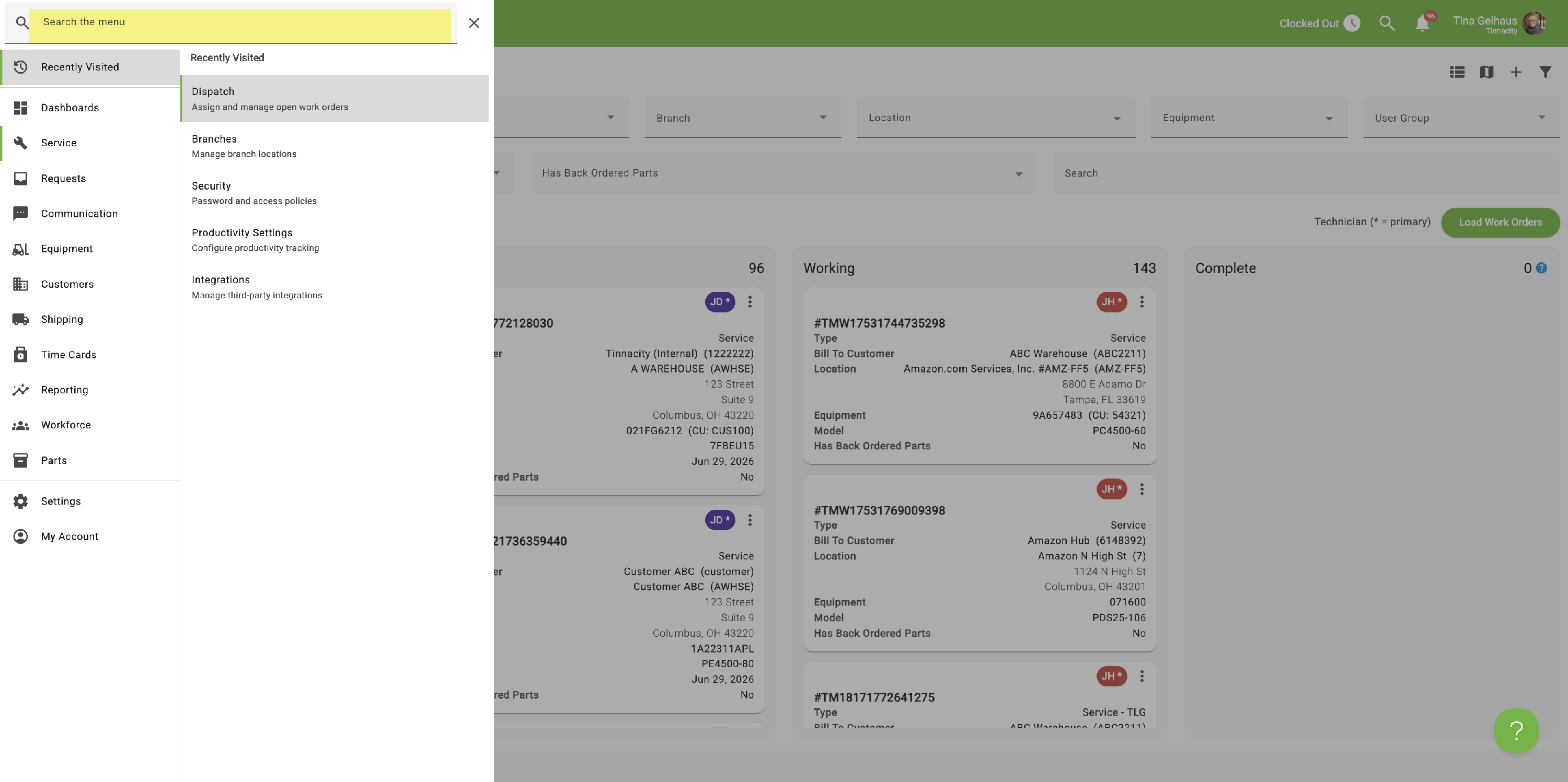
The Service, Time Cards, Report, and Admin menus — and Shipping, if you have it enabled — are moving out of the top menu bar and into one consolidated navigation panel.
-
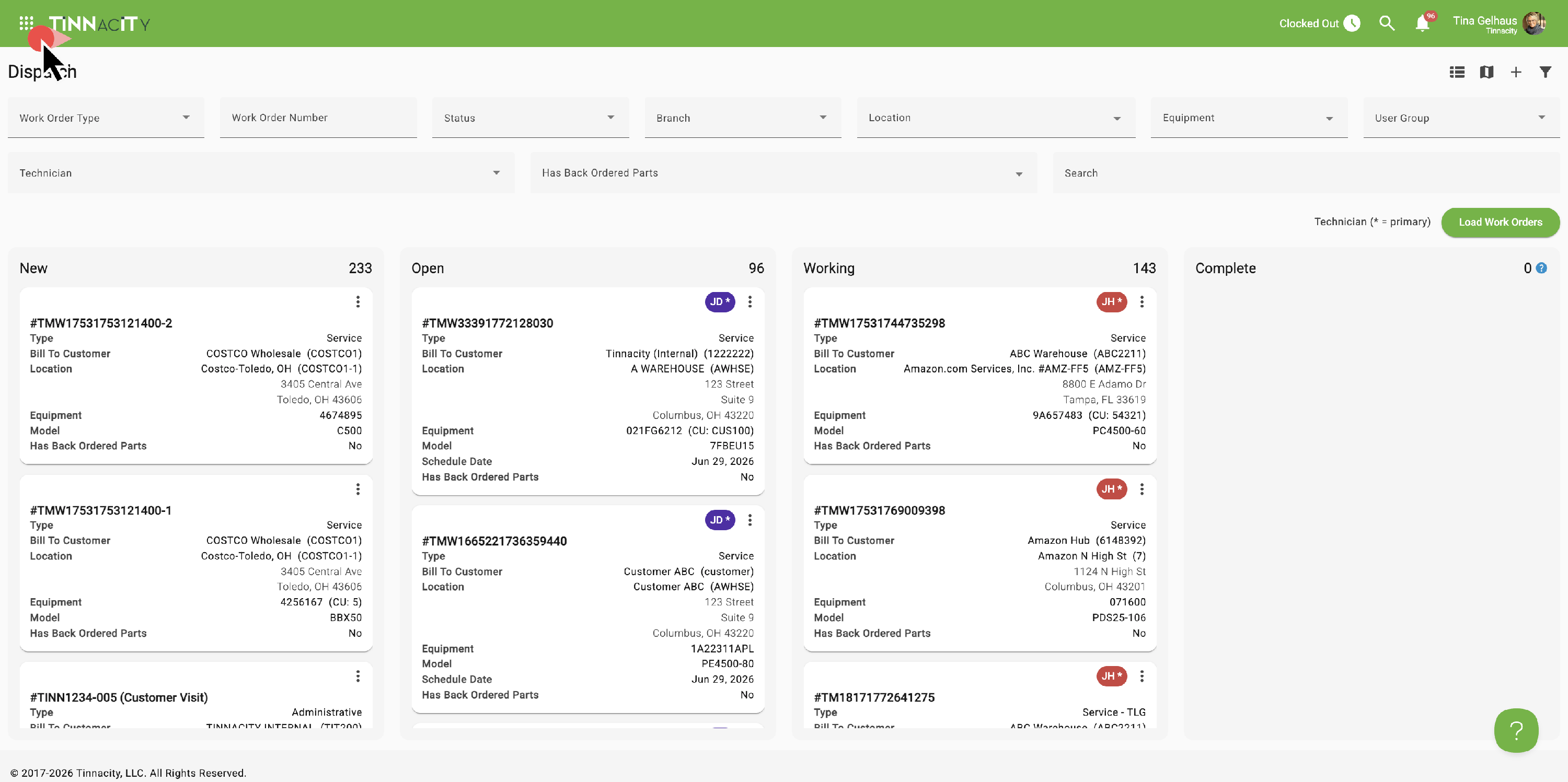
Open the new navigation panel using the nine-dot icon in the top-left corner.
-
Menu items have been reorganized into their correct domain, so related tools are grouped together instead of spread across separate top-level menus.
Find Things Faster
-
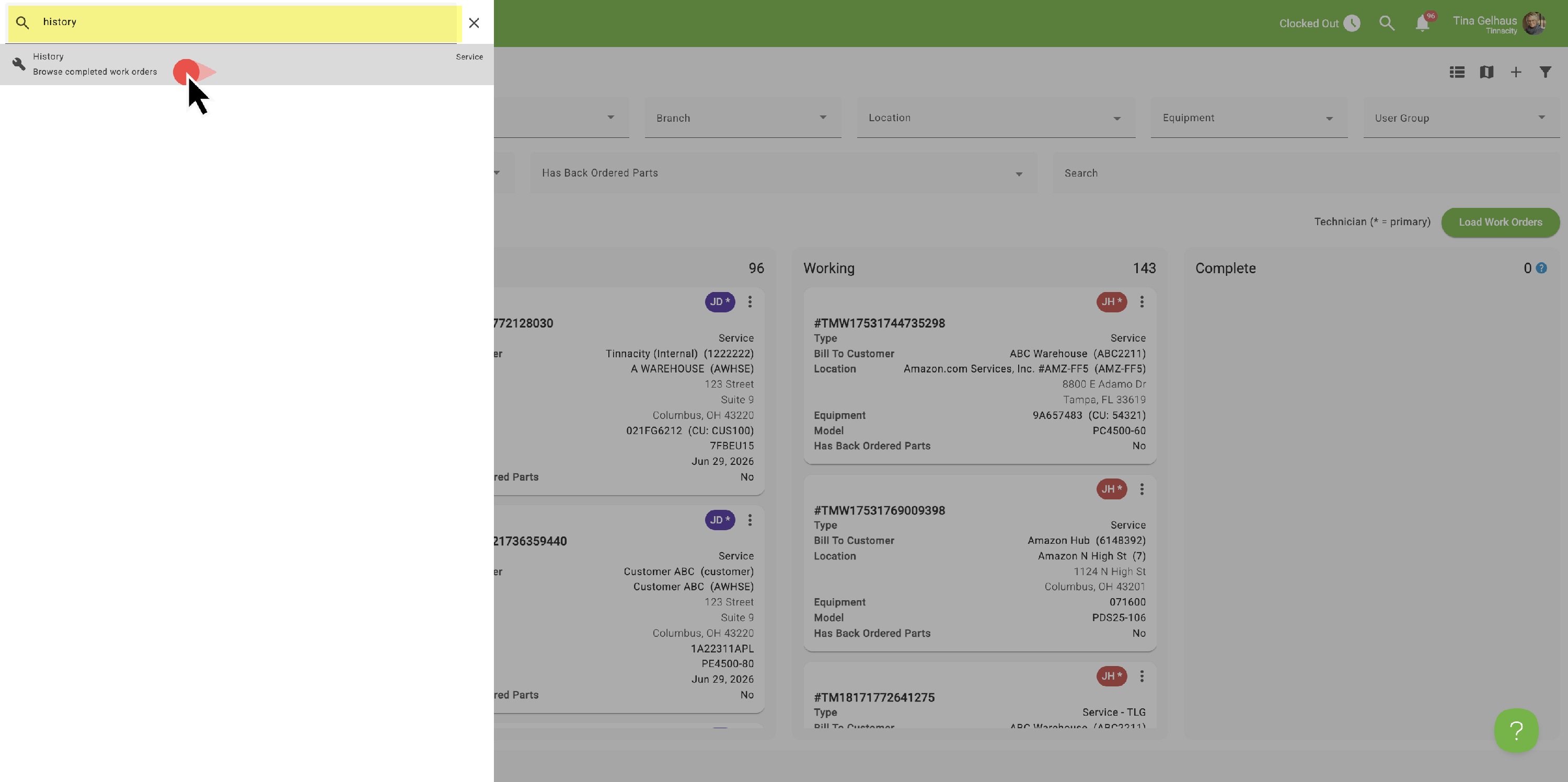
Use the search bar inside the new navigation panel to jump straight to any menu item.
-
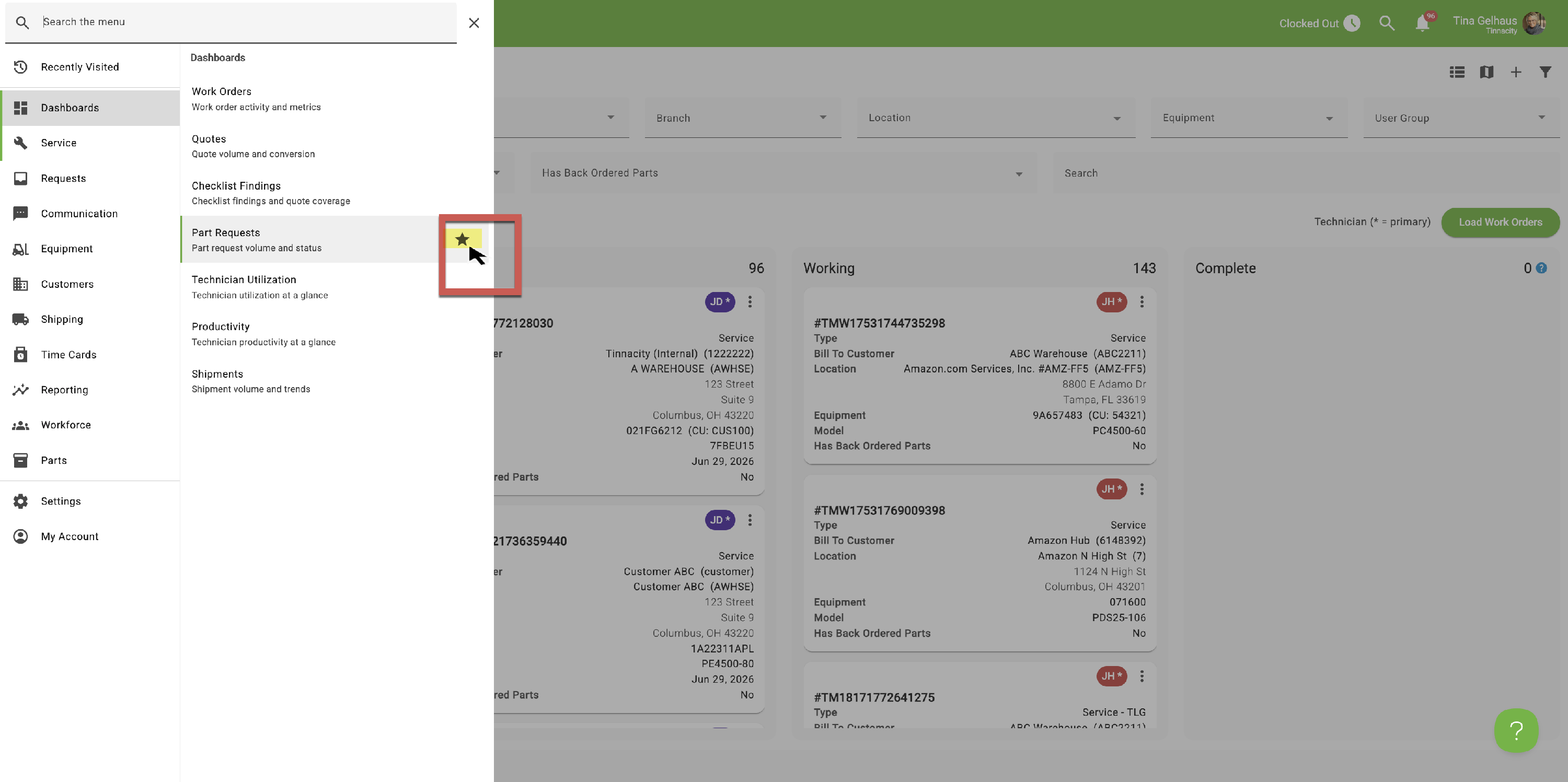
Mark items you use often as favorites to pin them in the 'Favorites' and to add as a menu item for quick access.
Search Function
Press Ctrl+K (Windows) or Command+K (Mac) to open the search box from anywhere in HQ. Type what you’re looking for, then hit Enter to select it — or just click it with your mouse.

To favorite the selected page for quick access, click the star icon or press Ctrl+S (Windows) / Cmd+S (Mac). This adds it directly to your top menu bar.

If there are more favorites that cannot be listed across the top, there will be a '...' option to view them.
