
SMS Communication
The SMS feature is now available for clients to fully set up in HQ without assistance from Tinnacity.
The SMS feature lets Tinnacity send text messages to your customers from a verified toll-free number tied to your company account — the same way outbound email already works from your verified sender address. Before you can send texts, the toll-free number goes through a one-time verification/approval process (shown as "Status" on the Communication Settings page); once approved, you're ready to send.
You can set up SMS templates for common messages so you're not typing them out each time — for example, a "Technician en route, ETA 25 minutes" text. Templates keep messaging consistent and make it quick to notify customers at key points without composing a new message every time.
There are two charges to know about: a flat $3.00/month for the toll-free number itself, and $0.04 per outgoing message segment (longer texts that split into multiple segments are billed per segment, same as standard carrier billing). You can check current standing anytime via the "View status" link on the Communication Settings page.
Prerequisite:
- Depending on an HQ user's role, certain abilities relating to this feature (i.e. Read SMS, Send SMS) might not be accessible due to the role's permissions.
Below is a video further explaining this feature:
Setting Up SMS
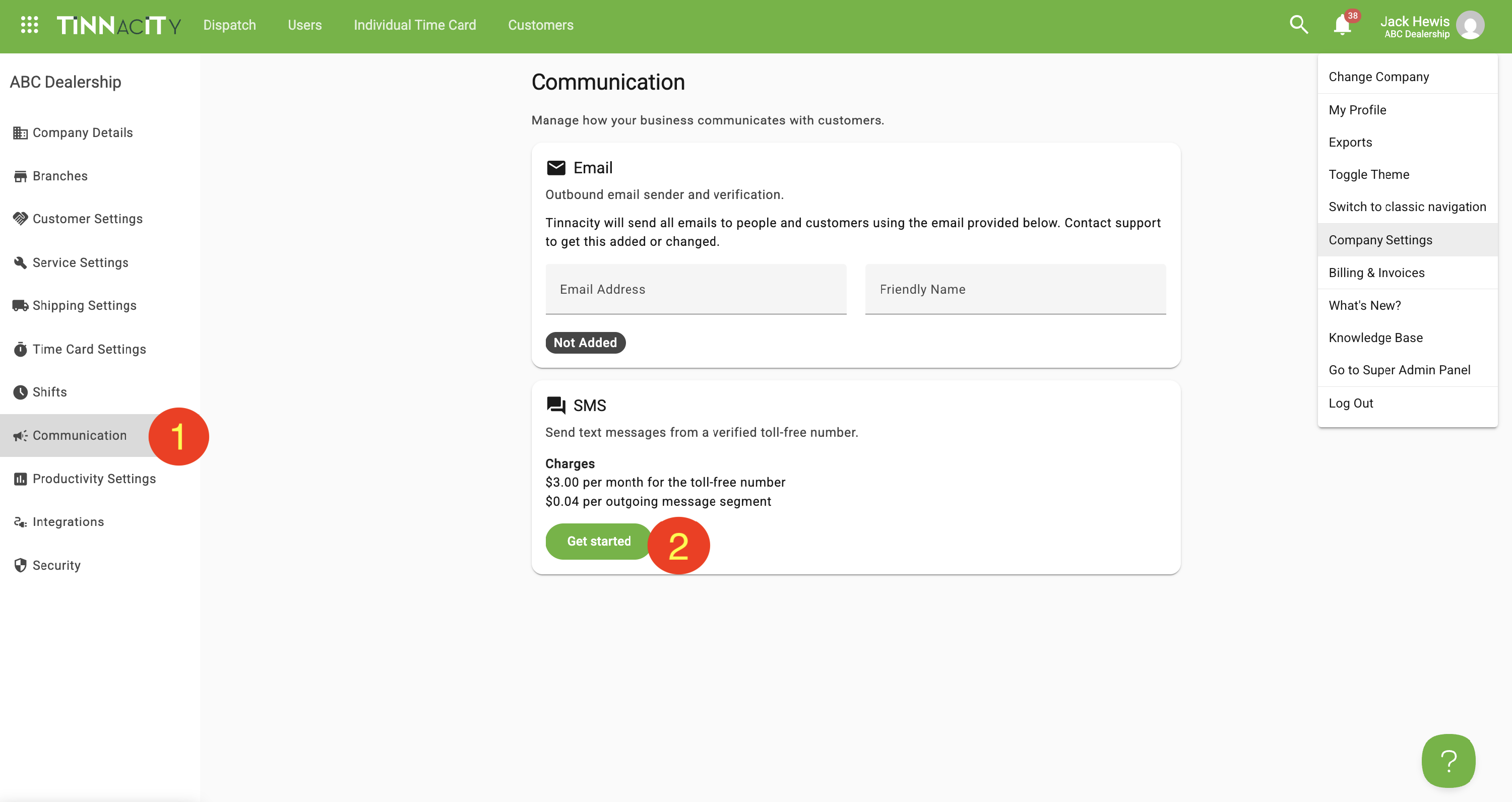
1. Open Communication
Click your name in the top-right corner of HQ, select Company Settings, then click Communication in the left sidebar.
2. Choose a Phone Number
Click [Get Started], then pick a toll-free number for your outbound texts. You can search by area code.
3. Complete the SMS Verification Setup
Fill in each section: Business information, Business registration, Business contact, and Policies (see below). Click [Save draft] to finish later, or [Submit for verification] when you're done. Your status shows on the Communication Settings page while the number is reviewed.
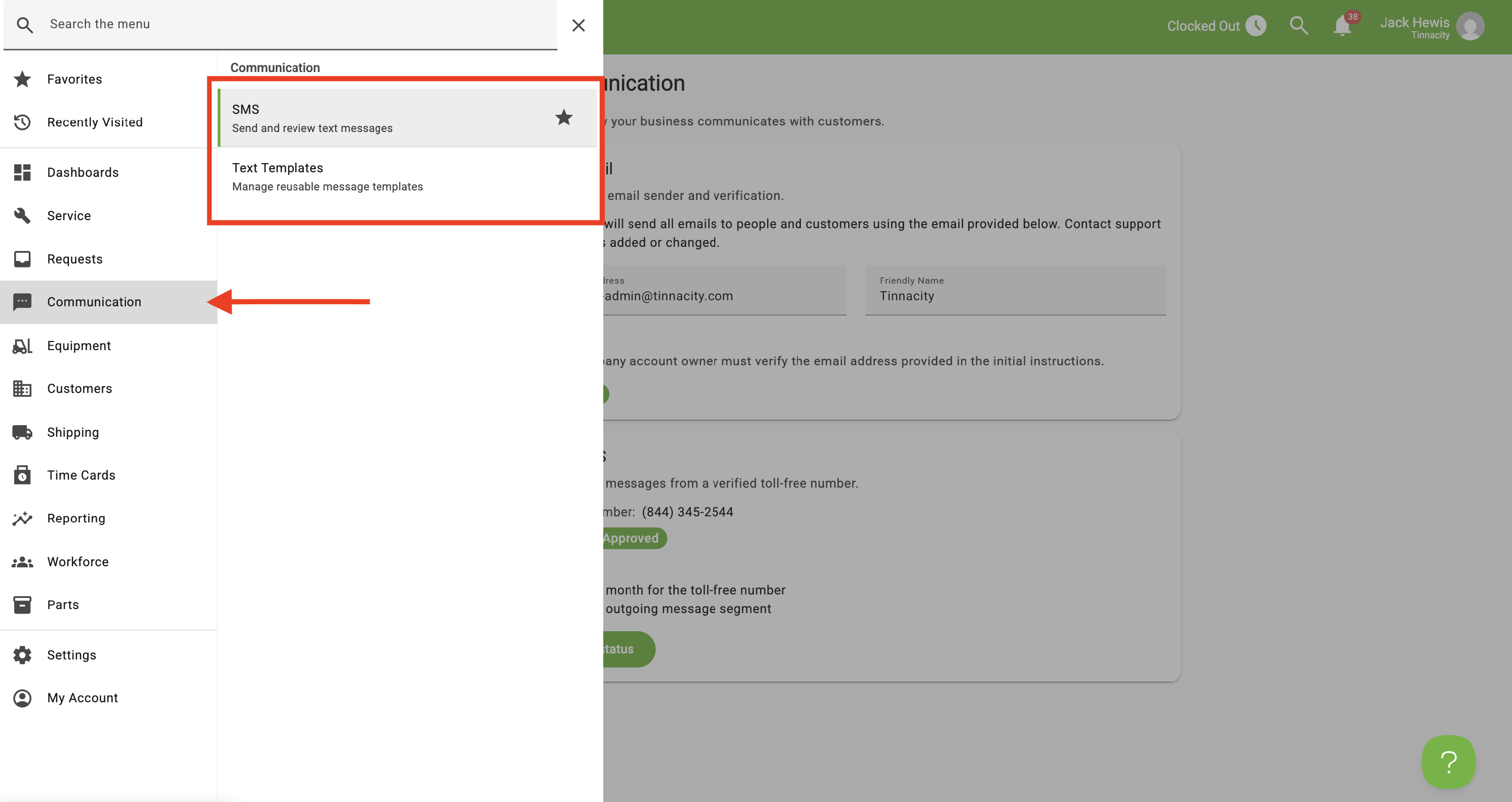
NOTE: Once SMS is set up, a Communication tab will populate in the menu. The tab includes two subcategories: SMS & Text Templates. Both of these can be favorited and added to the top of your page in HQ.
Privacy Policy and Terms of Service Requirements
Before your toll-free number can be approved, carriers check your company's own privacy policy and terms of service. In the Policies section of the SMS verification setup, enter a link to each one.
- Both pages must be publicly reachable, meaning anyone can open them without logging in.
- Both pages must describe your text messaging program.
Privacy policy URL: Your privacy policy must state that text message opt-in data and consent are not shared with third parties.
Terms of service URL: Your terms must state:
- How often messages are sent (message frequency)
- That message and data rates may apply
- How to opt out
NOTE: Use your own company's privacy policy and terms, not Tinnacity's. If either page is missing this information, verification may be delayed or rejected.
Creating Text Templates
Text Templates can be created for messages that are frequently sent to customers.
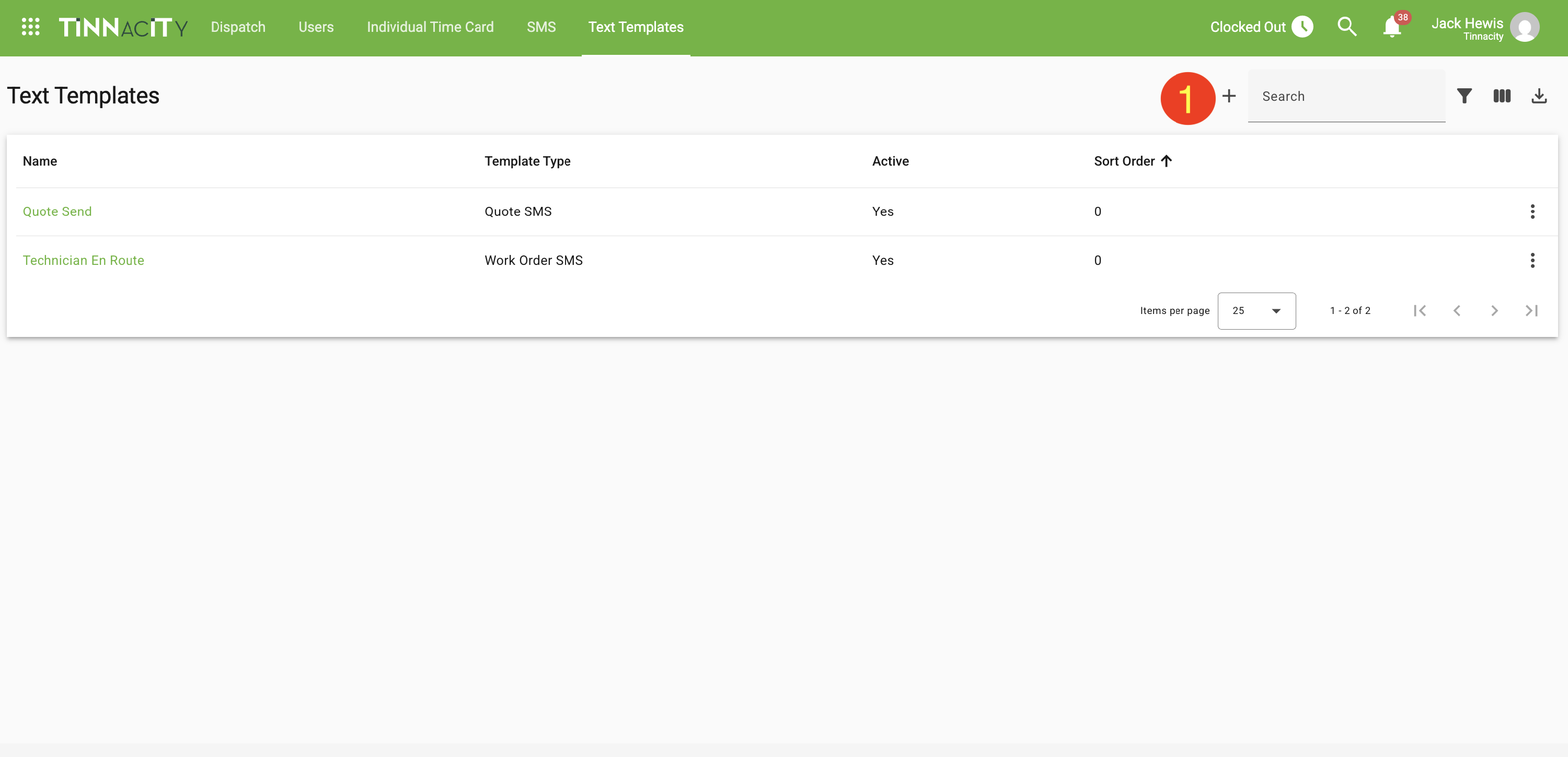
1. Create a New Template
Within the menu, click on the Communication tab. Select Text Templates, then Click on the create icon.
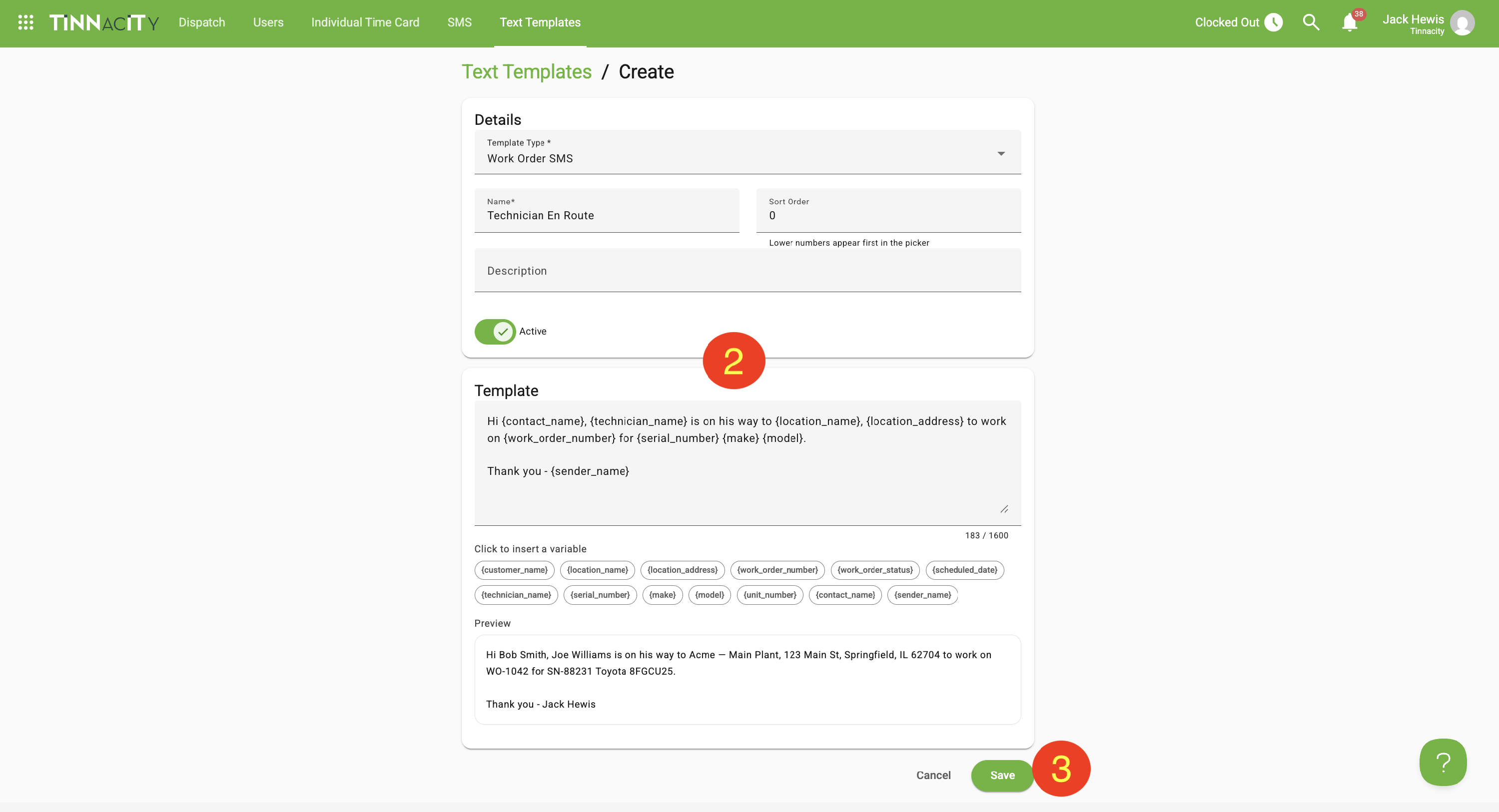
2. Fill in the Necessary Fields
Select a template type. Give the template a name, then enter the message text you want to reuse. The Sort Order and Description are two additional (not required) fields that can be added to as well.
3. Save the Template
Click [Save]. The template is now available to select whenever an HQ user sends a text message.
Send a Text Message from a Record
Send-from-entity messaging means you can send a text directly from the record you're already working in — no need to leave the screen. This is available from:
- Work Orders
- Quotes
- Location contacts
The steps below include instructions on how to send a message from a work order specifically (as an example).
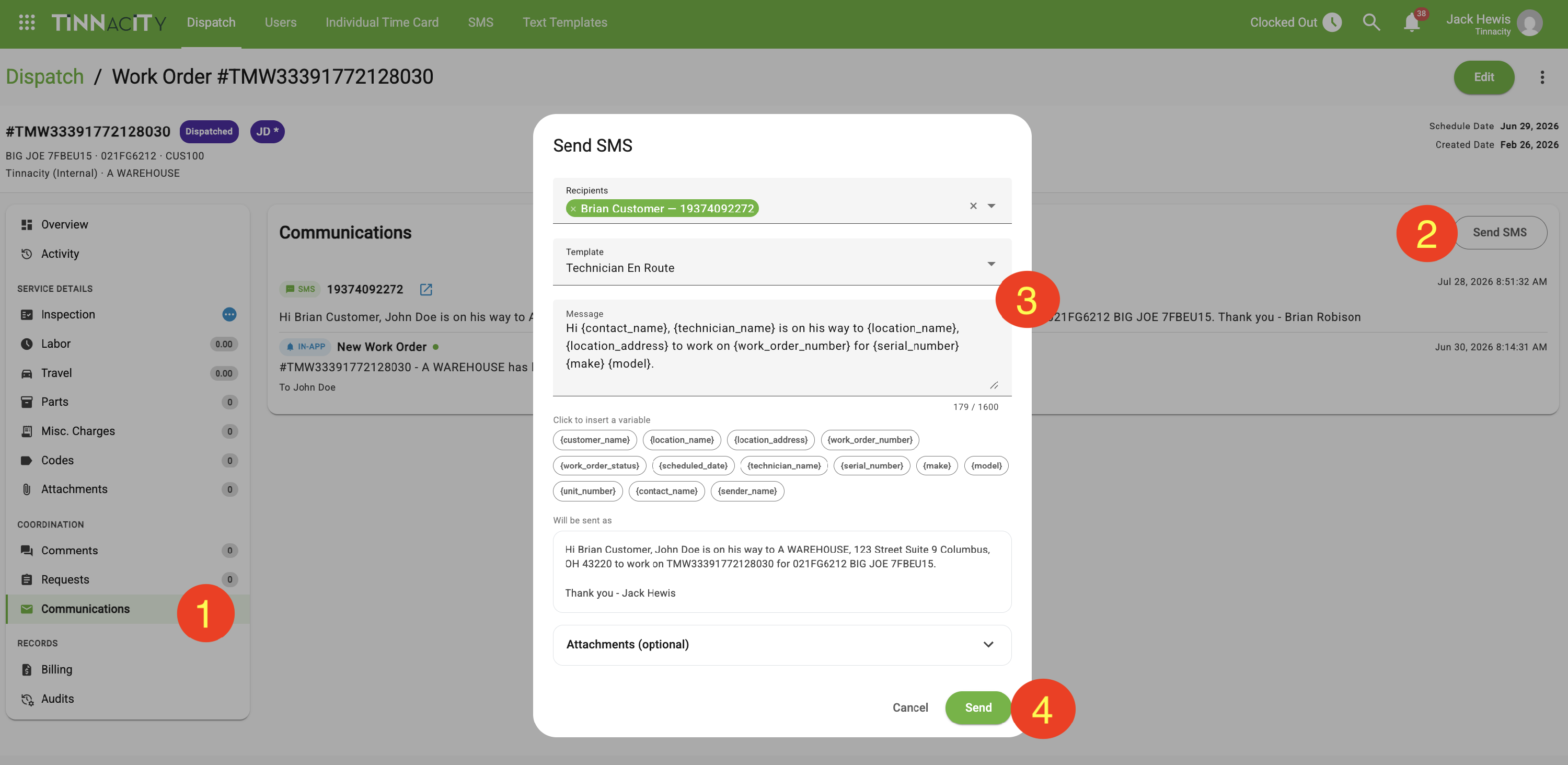
1. Choose Work Order
Select a work order and then click on the Communications tab.
2. Create
Click [Send SMS].
3. Add Information
Select a saved template from the dropdown, or type a message from scratch. Templates can be edited before sending without affecting the saved version.
4. Send
Click [Send]. The message is sent to the contact associated with that record.
View SMS History
In the menu, click on Communication and then click SMS. All of the text message history with your customers exists right here. Every text thread lives under Conversations. Each thread includes every message that has been exchanged with that customer - each with a date/time stamp.
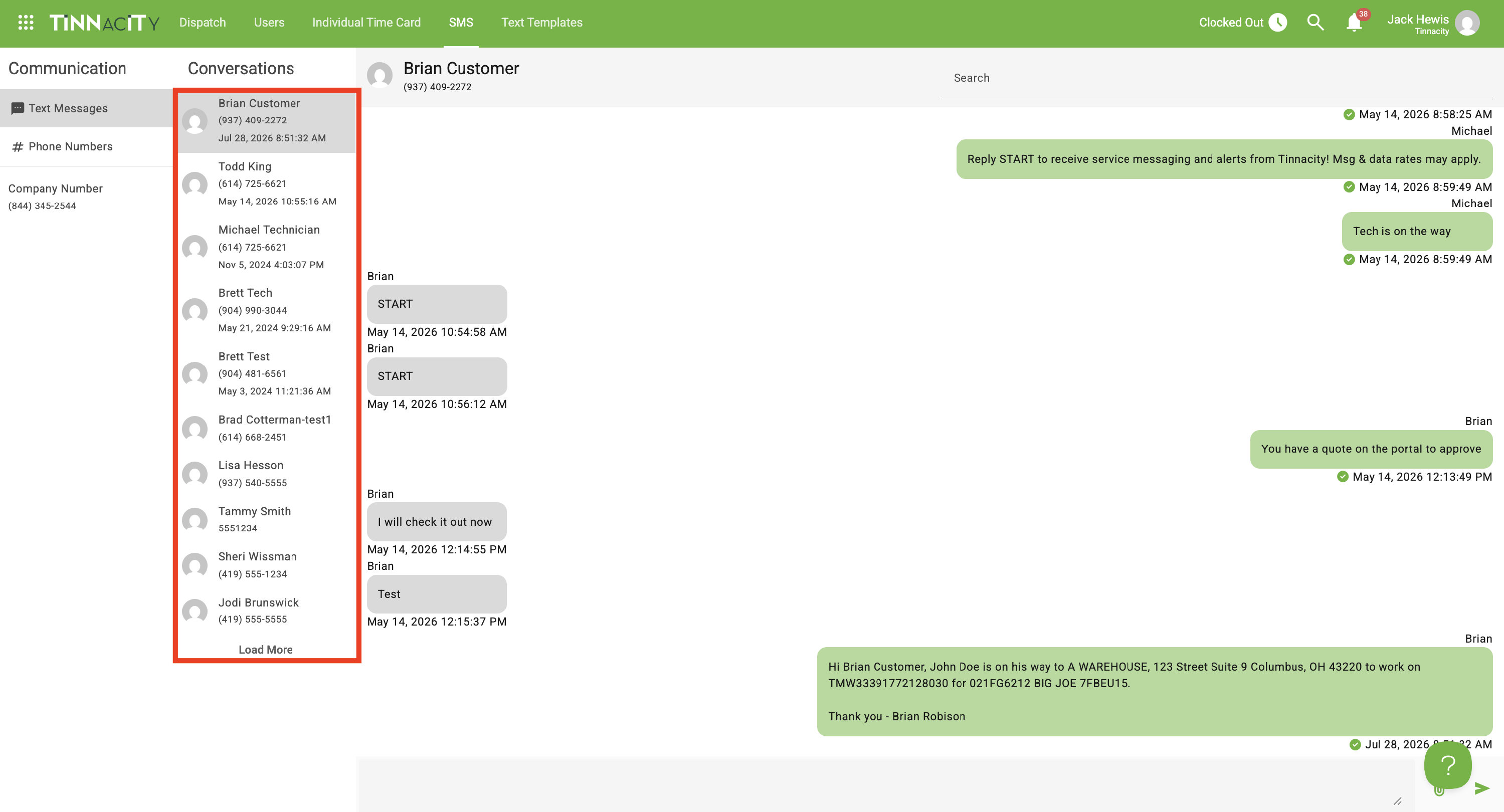
NOTE: You are able to view a list of all phone numbers as well by clicking on # Phone Numbers.