
Part Request Best Practices
This document outlines the best practices for part requests: including Purchased parts by technicians [In Field Purchase] and technician needs a part [General] and how the part request is managed within HQ.
How to Create a Part Request in the Service App
Technicians have two primary ways to initiate this request within the Service app:
Option A: From the Parts Card
- Navigate to the Parts Card within the work order.
- Tap the "+" (plus) sign (usually associated with the van inventory list), select [Part Request].
-
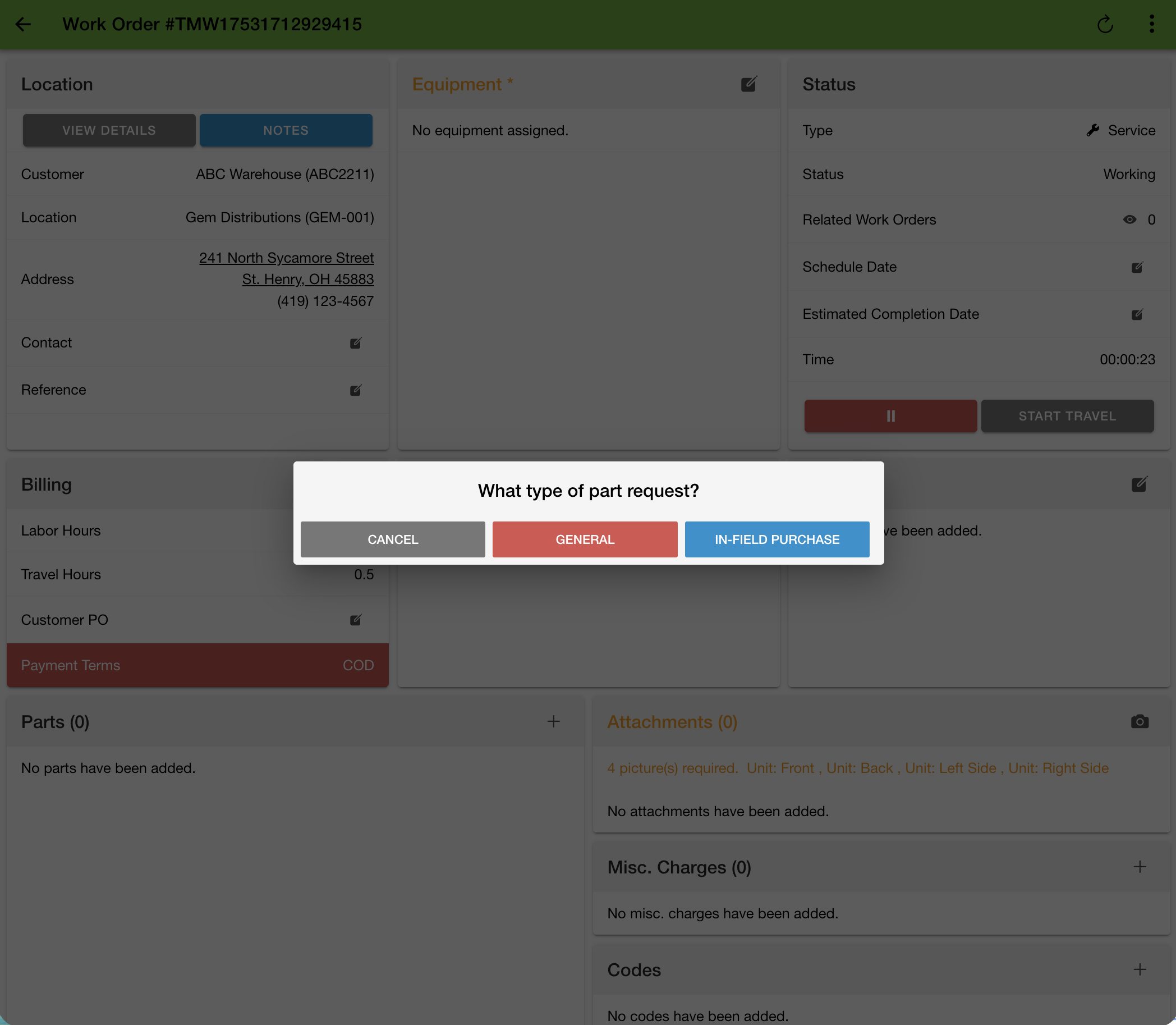
Select the option for an [In-Field Purchase] or [General].
Option B: From Work Order Details
- Tap the three dots (menu icon) in the top right corner of the Work Order Details screen.
- Select Part Request, then select the option for [In-Field Purchase] or [General].
Technician In-Field Purchased Parts
The following steps outline the best practice for in-field purchased parts:
The In-Field Purchase Workflow
- Request Submissions: The technician identifies a needed part and submits an In Field Purchase request while still at the customer’s location.
- Back-Office Processing: The request alerts the back-office team immediately, giving them a "head start" to review the request and generate a Purchase Order (PO) Number.
- Transit Time: While the back-office is working, the technician travels to the vendor.
- PO Delivery: Ideally, by the time the technician arrives at the vendor (or shortly after), the PO number is ready and available in the app or sent via a Comment notification, allowing for a seamless pickup.
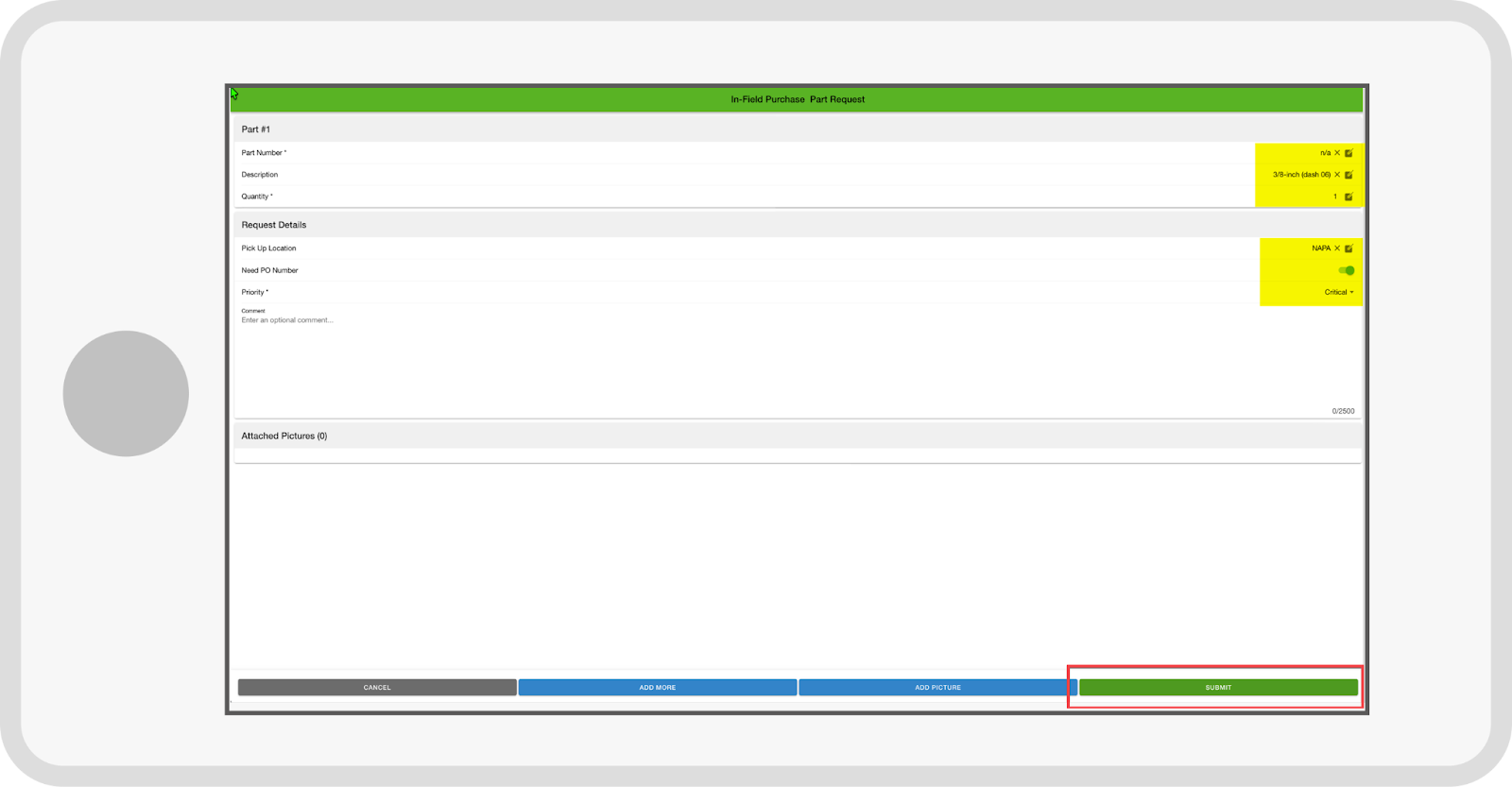
The In-Field Purchase part request includes:
- Part Number (when the part number is not known, enter “unknown” or “n/a”)
- Description
- Quantity
- Pick Up Location (i.e., NAPA, vendor where the part is being purchased)
- Need PO Number (toggle on to indicate a PO Number is required)
- Priority (some use CRITICAL to provide a visual indicator to the back-office that a PO Number is needed in a timely manner).
PO Number Assignment in HQ
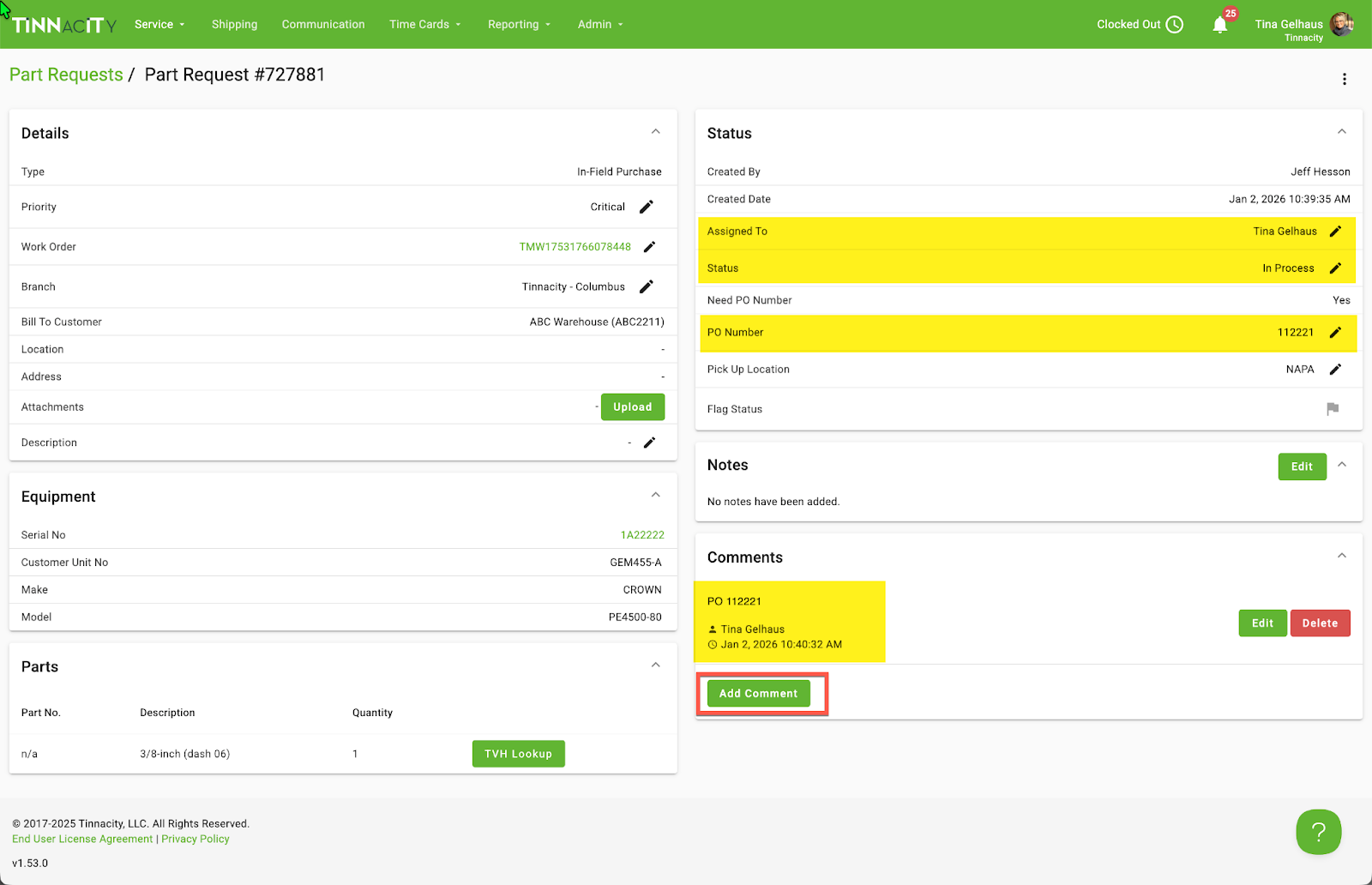
Once an In-Field Purchase Part Request appears in HQ > Part Requests, a member of the Parts team will take ownership and update the status to 'In Process.' After generating the PO number enter it into the designated 'PO Number' field in HQ. IMPORTANT: Timely PO assignment is essential for field efficiency. Please ensure the PO number is generated and shared promptly so the technician has it ready for the vendor upon arrival.
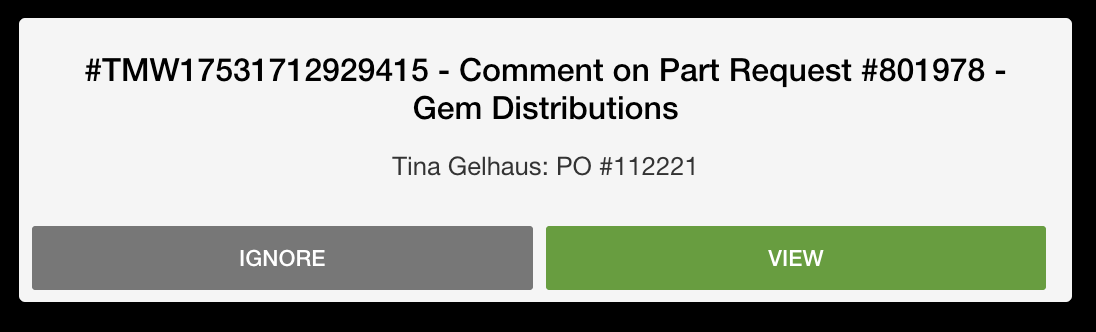
Pro-Tip: Use the [Add Comment] feature to send a quick courtesy note with the PO number. This triggers an automatic notification for the technician, keeping them informed in real-time.
NOTE: If a comment is not added, the technician can view the PO Number within the work order Activity menu via the Part Request details.
Part Purchase and Receipt Documentation within the Service App
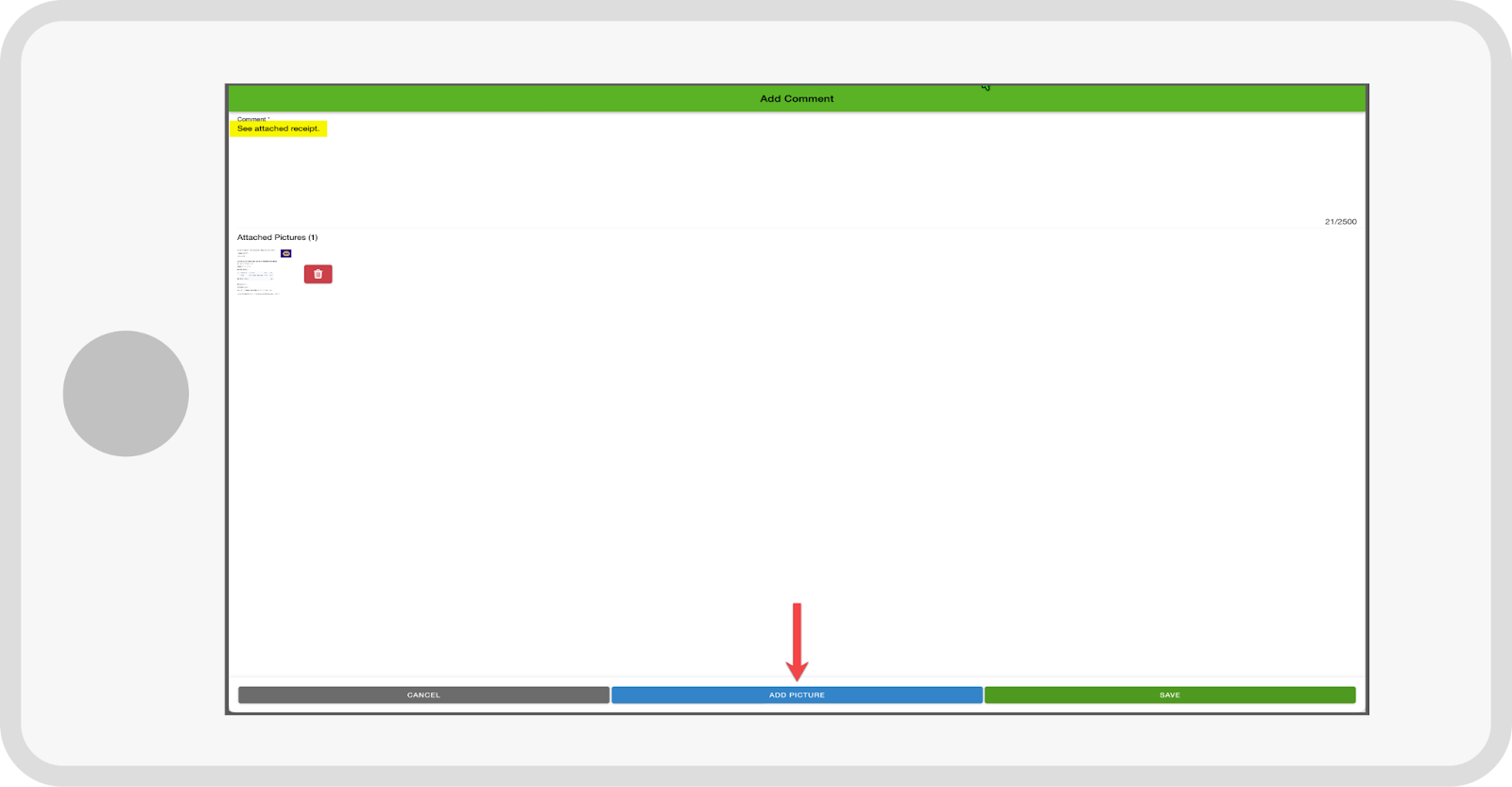
The technician purchases the part(s), adds a comment to the relevant part request confirming the purchase, and attaches a picture of the receipt. Note: If the vendor changes, the technician should also comment on the change. The Part Request can be accessed via:
Option A: From Comment
-
Press [View]
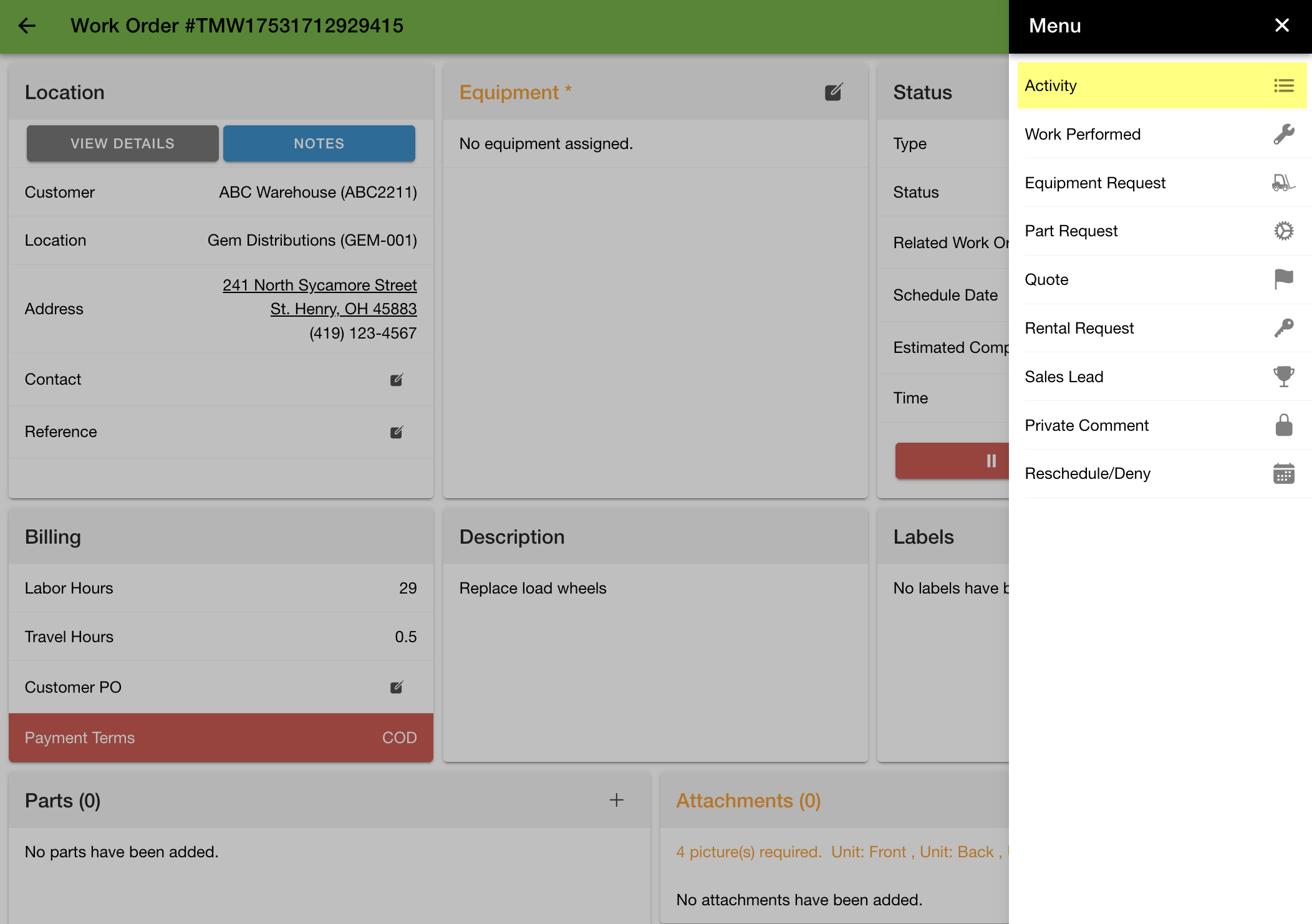
Option B - Via Activity
-
Within the work order details press the three dots, then 'Activity'. From here, locate and select the 'eye' icon for the relevant part request.
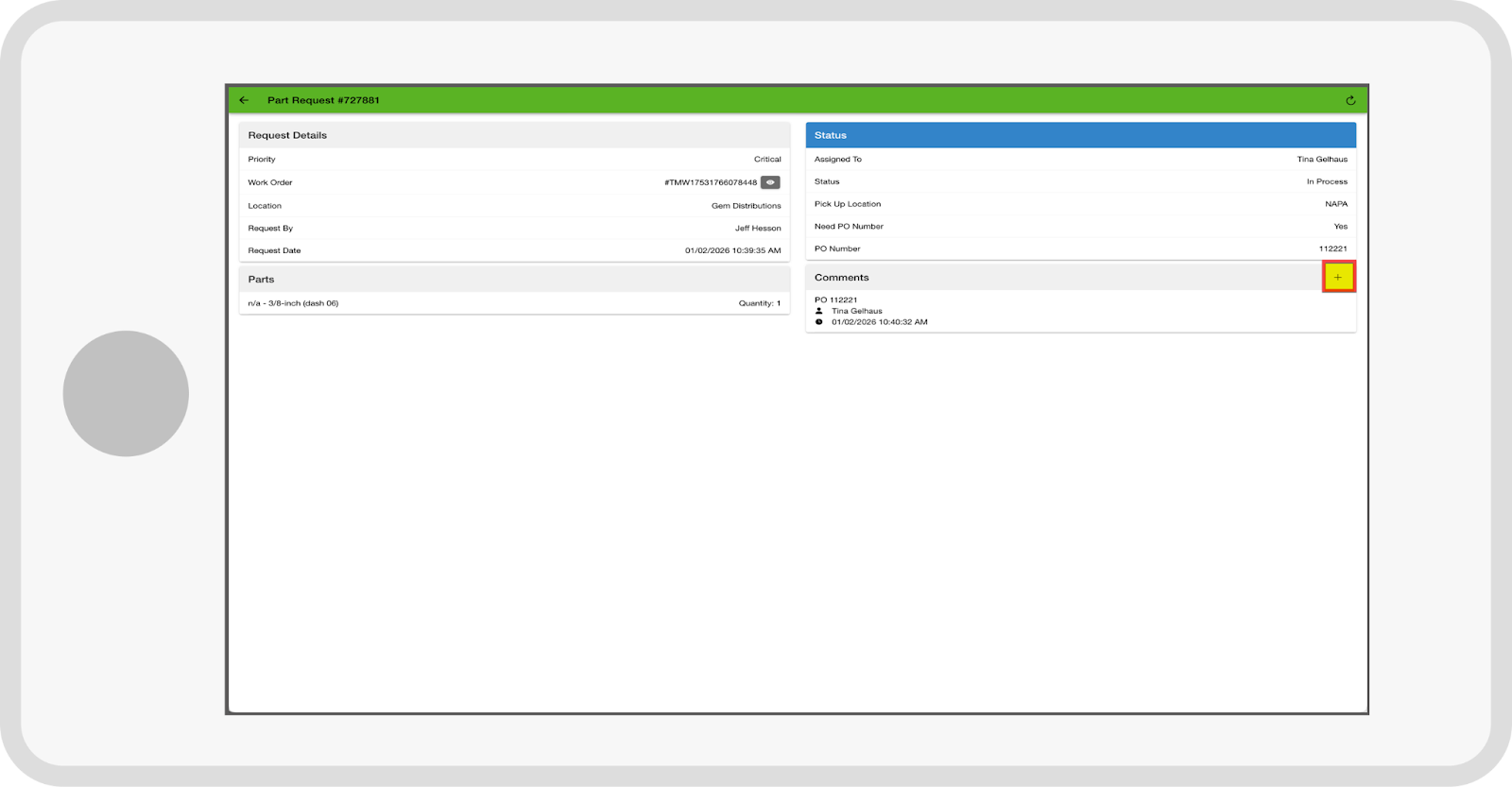
-
Within the Part Request details, press the ‘+’ sign.
- Enter a Comment (i.e., See attached receipt), take a picture of the receipt, and [Submit].
Parts Department Entry
Using the attached receipt, the Parts Department enters the part(s) into the business system on the relevant work order. Part(s) added to the work order will automatically sync to the work order in Tinnacity. Update the status to Complete. It is crucial that parts are added to a work order as soon as possible to ensure they are recorded before the technician completes the job.
Technician Needs a [General] Part
The follow steps outline the technician needs the parts department to purchase the part(s):
Part Request Submission
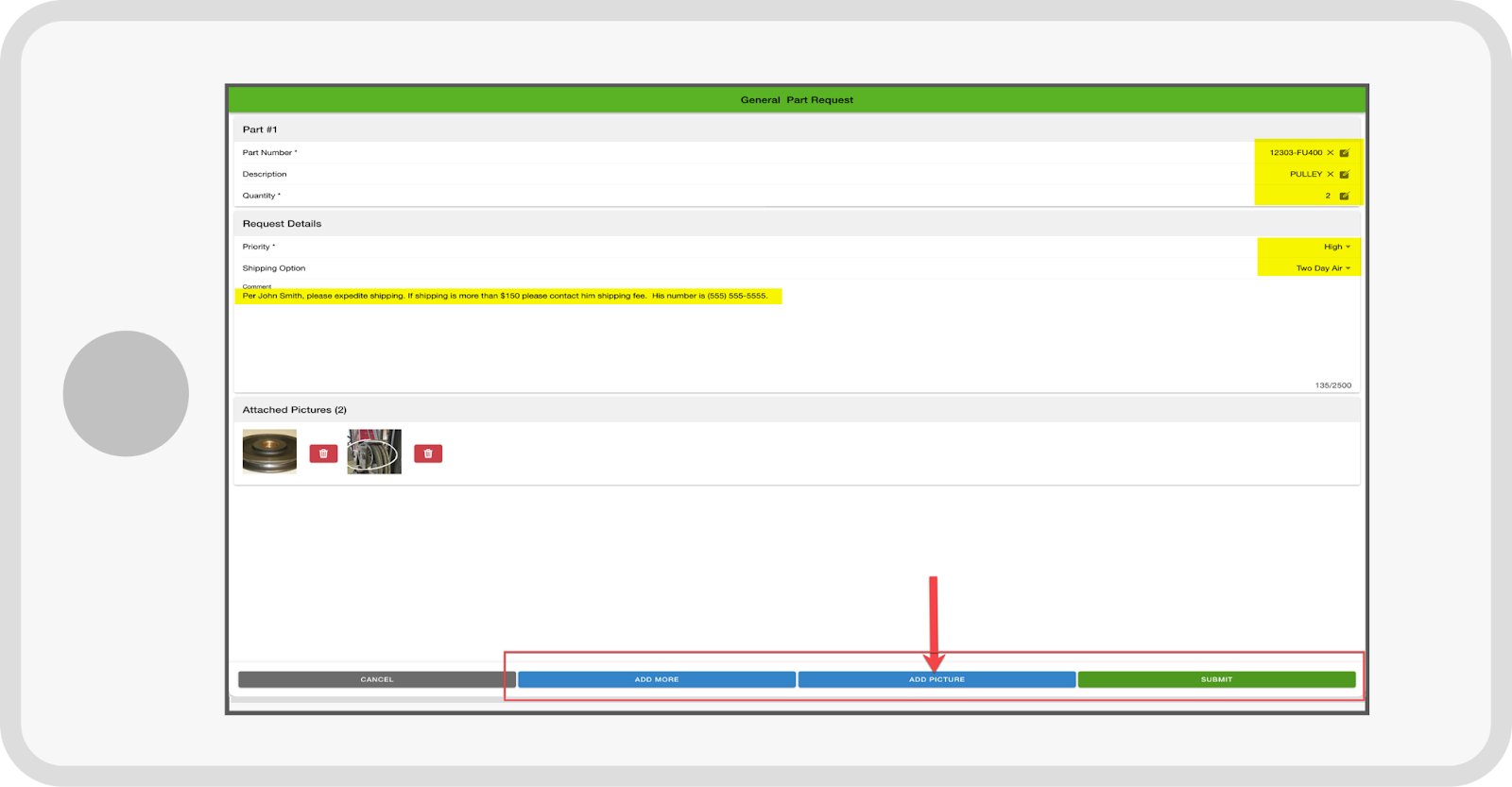
In the Service app, the technician submits a [General] part request including:
- Part Number
- Description
- Quantity
- Priority (It is highly recommended implementing a guideline for when to use Low, Normal, High, Critical)
- Shipping Option (It is highly recommended implementing a policy for all expedited parts requests (2-Day or Next Day Air). To ensure accountability and streamline delivery, technicians should be required to include the contact’s name and phone number of the specific individual authorizing the expedited shipping.
- TIP: To document pending parts and follow-up visits, technicians should submit a 'Reschedule Request' in the Service app. Capturing the customer’s signature at this stage serves as formal authorization for part procurement, particularly for Next Day Air or 2-Day Shipping costs. Click here to learn more about Reschedule Requests.
- Pictures (Take pictures of the part(s) needed to help the Parts Department know exactly what is needed, if the part is easily accessible, data tag, etc.)
-
[Add More] (if more than one part is needed, use Add More)
Parts Department Acknowledgement
In HQ Service>Part Requests, a Parts Personnel takes ownership of the request and updates the status to In Process and begins researching the request. During your research, remember to use the Notes and Comments features to communicate with your back-office and technicians. TIP: A part request CAN be edited by an HQ user, if needed. To edit a part request, click on the Edit button in the top right corner of the part request details screen to edit the: Request Type, Priority, Location, Work Order, Bill To Customer or Description.

Parts Ordered
Use your current process for ordering parts, once the parts are on order, update the relevant part request status to Parts Ordered. As well as, in the Notes card enter the estimated arrival date. You can also add a courtesy Comment letting your technician know the estimated arrival date or if the part was pulled from parts stock provide a comment when the part is placed into their bin for pick up. NOTE: Parts on order will automatically appear as “back ordered” in Tinnacity (they are not physically available to give to the technician).