
Location (HQ)
Key Configuration Categories
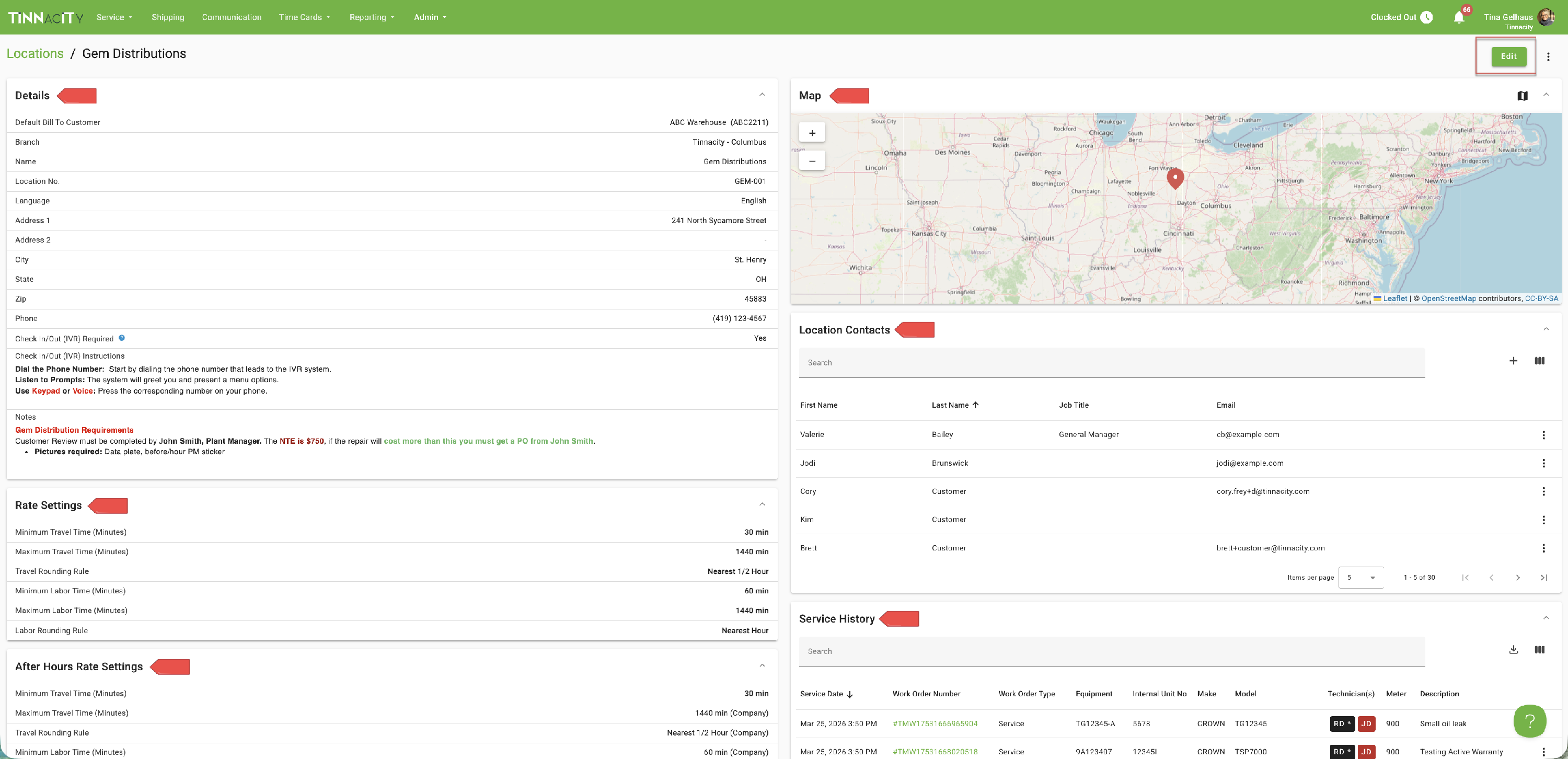
1. Location Details
This covers the foundational data for the "Ship To" site, including the branch, address, and contact info.
[!IMPORTANT] Integration Warning: If your Tinnacity instance is synced with your dealership’s business system (ERP), do not update these details in Tinnacity. The nightly sync will overwrite any manual changes you make here. Always update the "source of truth" (your business system) instead.
2. IVR & Billing Rates
These settings allow for granular control over how a specific site is handled compared to your global defaults:
- IVR Settings: Essential for customers who require technicians to check in/out via an Interactive Voice Response system.
- Rate Settings: Overrides the default work order type billing rates for this specific location.
-
After Hours Rates: Overrides the global company settings for service performed outside of standard hours.
3. Maps & Contact Management
-
Map View: Provides a visual reference for the physical location.
Location Contacts: * Manual Entry: Back-office staff can pre-populate these. Location Contacts can also be added in Admin>Location Contacts, click here to learn more about Location Contacts.
- Field Capture: Automatically created when technicians enter customer names/emails in the field.
- Service App Benefit: These contacts sync back to the technicians' mobile app, making it easy for them to select the right person on-site.
4. Service History
- Service History: Provides a list of all completed work orders for this location.
To customize or edit a location's settings, follow the below steps:
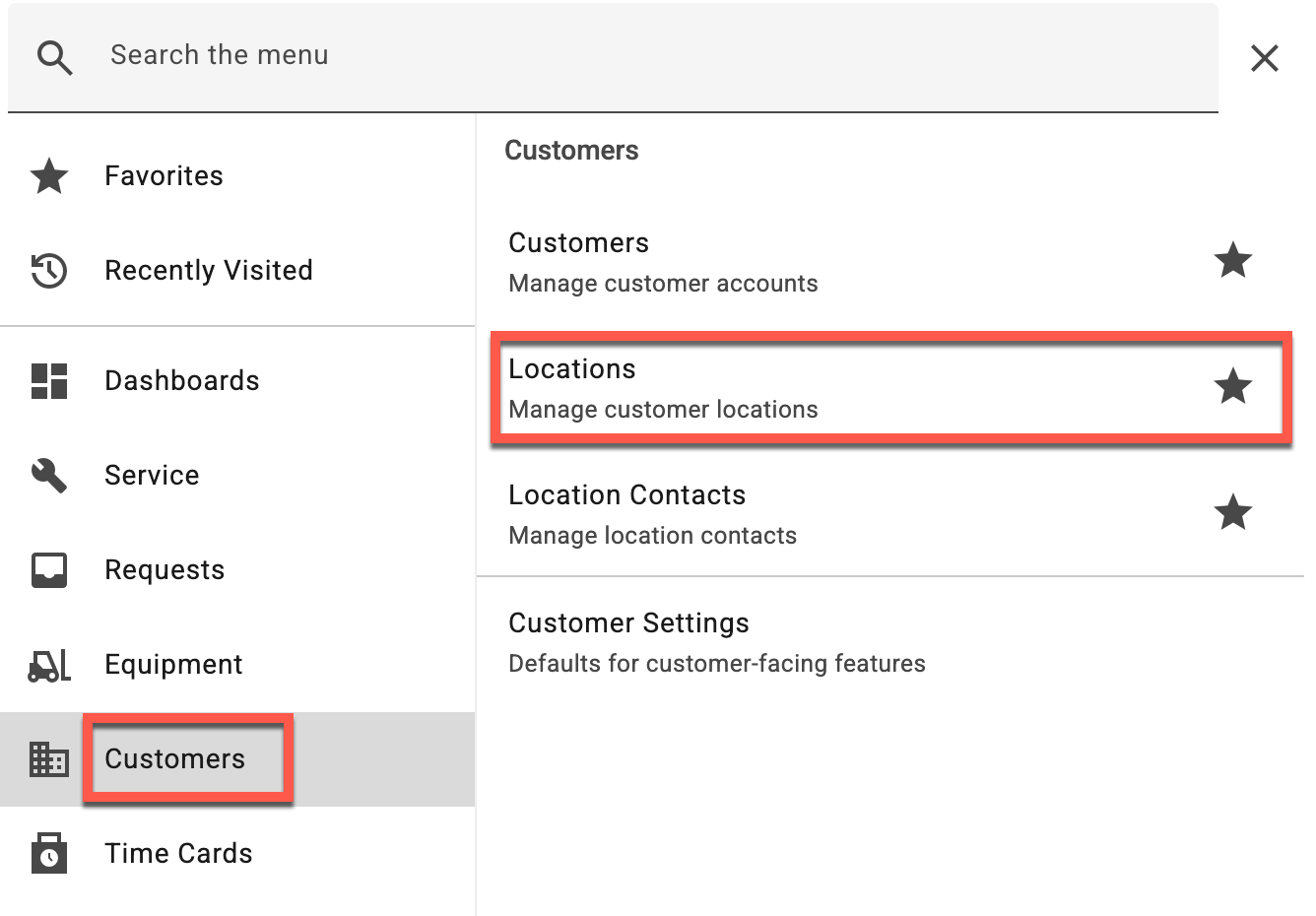
- In HQ, go to Customers > Locations.
- TIP: On Windows devices you can use the keyboard shortcut: CTRL + K and search for Locations. On MAC, use the keyboard shortcut: COMMAND + K
- Locate and select the relevant location.
-
Click [Edit], set the desired settings and click [Save].
Detailed Location Customizations
Billing & Logistics
- Default Bill To Customer: Streamlines the invoicing process by pre-selecting who receives the bill for this specific "Ship To" site.
- Branch Assignment: Ensures the location is mapped to the correct internal team for reporting and scheduling.
- Standard Details: Includes the Name, Location Number, Address, and Phone. (Again, remember to update these in your Business System if integrated).
IVR (Interactive Voice Response)
For customers requiring strict time-tracking logs via their own phone systems:
- Requirement Toggle: Turning this on flags the site as an IVR site for the technician.
- Specific Instructions: Since no two IVR systems are the same, use this space to provide the phone number to call and the prompts (e.g., "Press 1 for Check-in, enter Job #") the tech will need to follow.
Mastering Location Notes
Location Notes are a powerful "push" notification tool for your field staff.
Key Behaviors
- Automatic Visibility: Notes entered here pop up automatically the first time a technician opens a work order for this site in the Service app.
- Usage Ideas: Use these for gate codes, specific PPE requirements, or site-specific safety hazards.
Where to Store Notes? (Strategy)
| If the info applies to... | Enter it in... |
| All of a customer's sites | Admin > Customers |
| Only one specific site | Locations > [Specific Site] > Notes |
Rate Settings
- Minimum Travel Time (Minutes) - If the minimum travel time specified in the Work Order Type or Customer settings differs from what this location will be charged, then set the appropriate minimum travel time here.
- Maximum Travel Time (Minutes) - If the maximum travel time specified in the Work Order Type or Customer settings differs from what this location will be charged, then set the appropriate maximum travel time here.
- Travel Rounding Rule - If the travel rounding rule specified in the Work Order Type or Customer settings differs from this location's travel rounding agreements, then set the appropriate rounding rule here.
- Minimum Labor Time (Minutes) - If the minimum labor time specified in the Work Order Type or Customer settings differs from what this location will be charged, then set the appropriate minimum labor time here.
- Maximum Labor Time (Minutes) - If the maximum labor time specified in the Work Order Type or Customer settings differs from what this location will be charged, then set the appropriate maximum labor time here.
- Labor Rounding Rule - If the labor rounding rule specified in the Work Order Type or Customer settings differs from what this location's labor rounding agreements, then set the appropriate rounding rule here.
After Hours Rate Settings
After-hours refer to times outside normal business hours. If a technician is dispatched during these times, they should select [After Hours] when prompted with 'Clock in?' in the Service app to activate the after-hours billing rates.
- Minimum Travel Time (Minutes) - If the minimum travel time specified for After Hours in Company Settings or Customer settings differs from what this location's will be charged, then set the appropriate minimum travel time here.
- Maximum Travel Time (Minutes) - If the maximum travel time specified for After Hours in Company Settings or Customer settings differs from what this location will be charged, then set the appropriate maximum travel time here.
- Travel Rounding Rule - If the travel rounding rule specified for After Hours in Company Settings or Customer settings differs from what this location's travel rounding agreements, then set the appropriate rounding rule here.
- Minimum Labor Time (Minutes) - If the minimum labor time specified for After Hours in Company Settings or Customer settings differs from what this location will be charged, then set the appropriate minimum labor time here.
- Maximum Labor Time (Minutes) - If the maximum labor time specified for After Hours in Company Settings or Customer settings differs from what this location's will be charged, then set the appropriate maximum labor time here.
- Labor Rounding Rule - If the labor rounding rule specified for After Hours in Company Settings or Customer settings differs from what this location's labor rounding agreements, then set the appropriate rounding rule here.